How to Compare IFHRMS Run Results — Plus Minus Report for Bill Groups
Every month, the pay section needs to check what changed in employee salaries compared to the previous month. The treasury bill officer will ask: "Why is this employee's salary different? What changed?" This guide shows you how to download the Run Result from IFHRMS and then compare two months automatically using our free Plus Minus Report tool.
Instead of checking each employee one by one manually, you can upload two Run Result HTML files and get a clear report showing exactly which employees have Dues changes, which pay heads changed, and by how much.
Upload them directly and get the comparison report in seconds.
Open Plus Minus Report Tool →
Part 1: How to Download Run Result in IFHRMS
You need to download Run Results for two months of the same bill group. For example, August and September Run Results. Follow these steps for each month.
Go to the official Tamil Nadu IFHRMS website: karuvoolam.tn.gov.in.
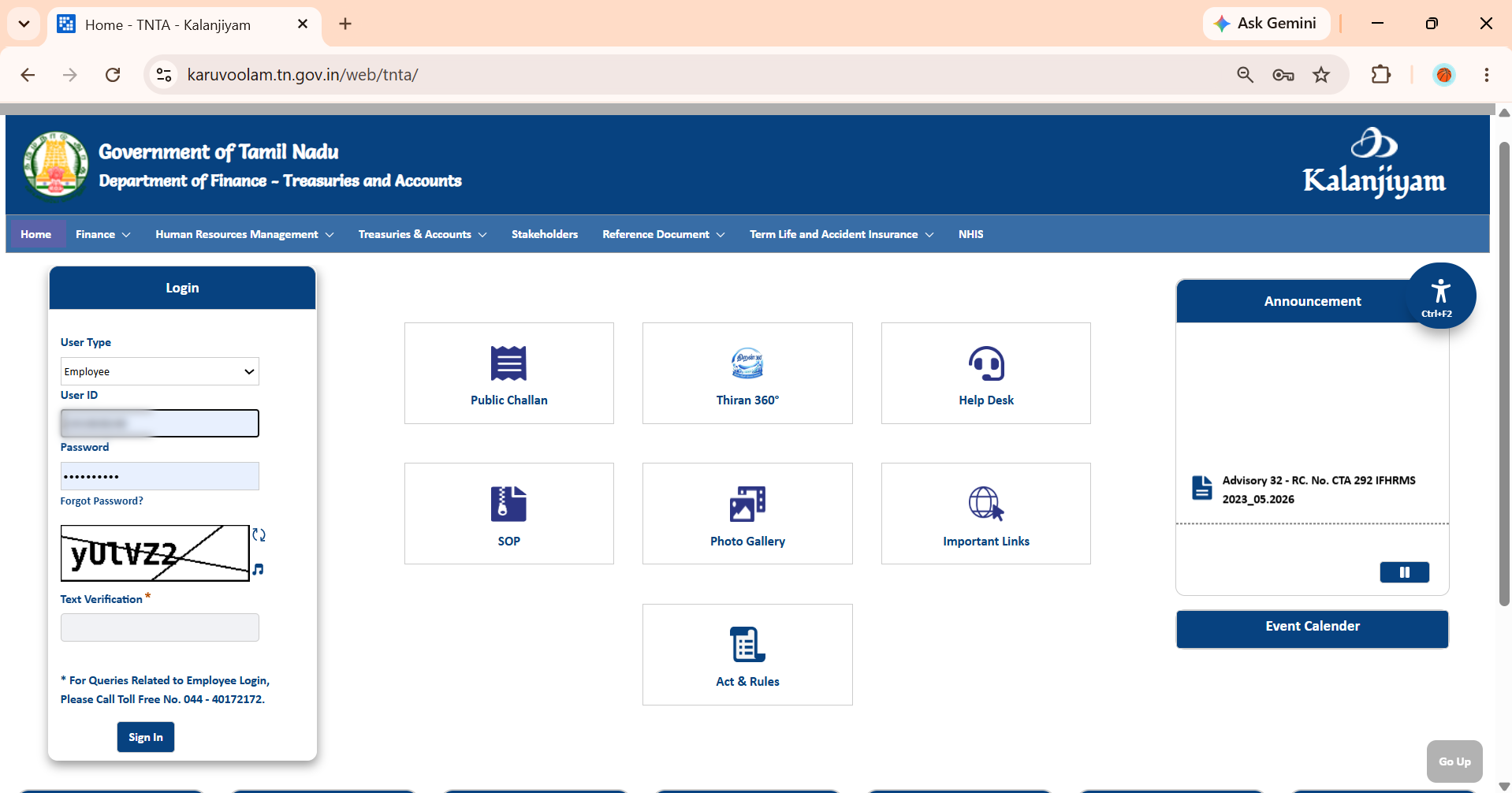
Select the correct user type on the login page.
In most cases, government employees should select Employee. If you are a pensioner, select Pensioner. For other users, select the respective user type.
Enter your User ID and Password. Enter the text verification shown on the page. Then click Sign In.
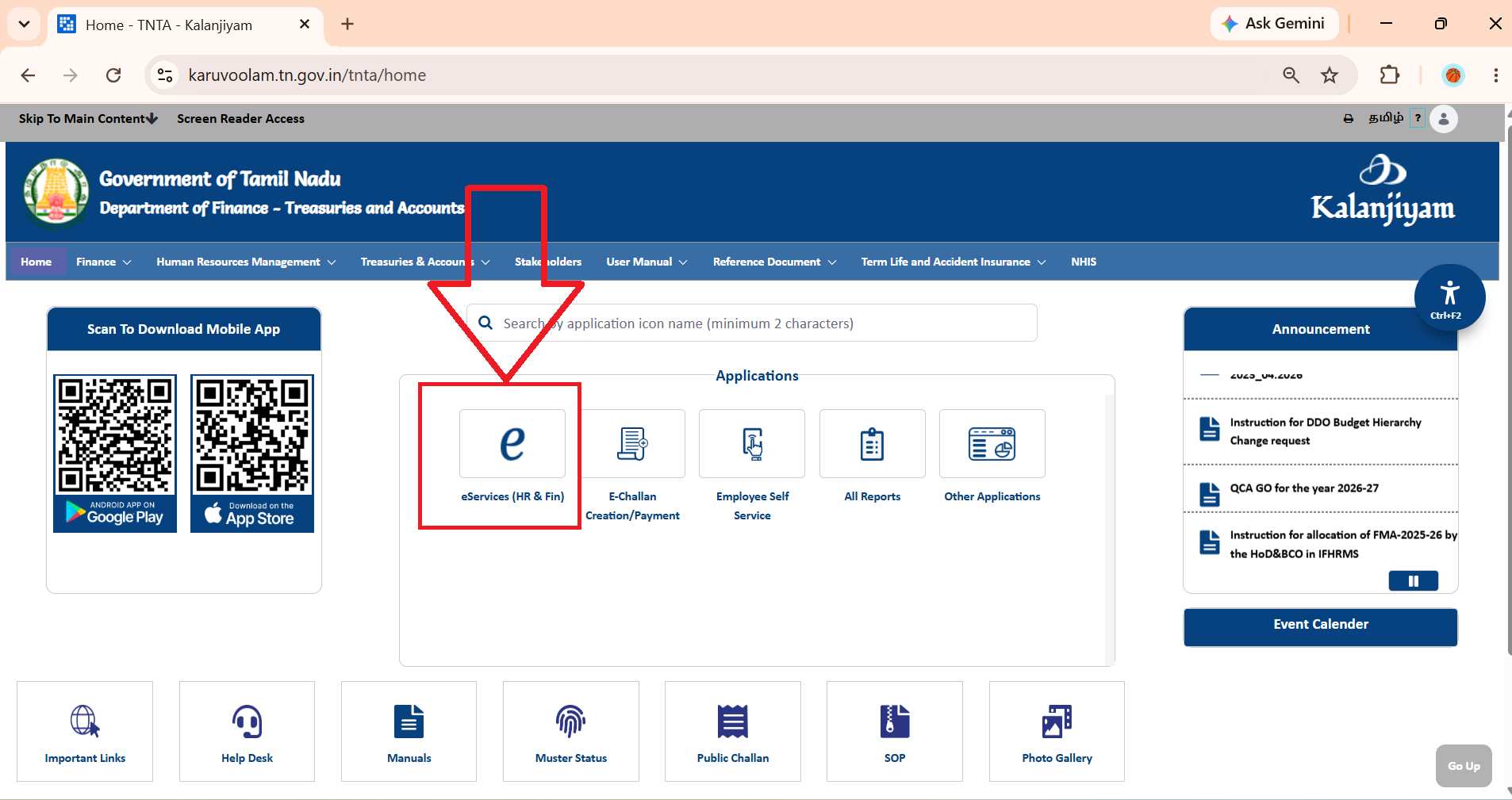
After login, you will see the IFHRMS home page. Click eServices (HR & Fin).
You will then see the e-Services E-Business Suite page. It contains icons such as Home (Human Resource), Home (GTN Finance) and Add Favorites.
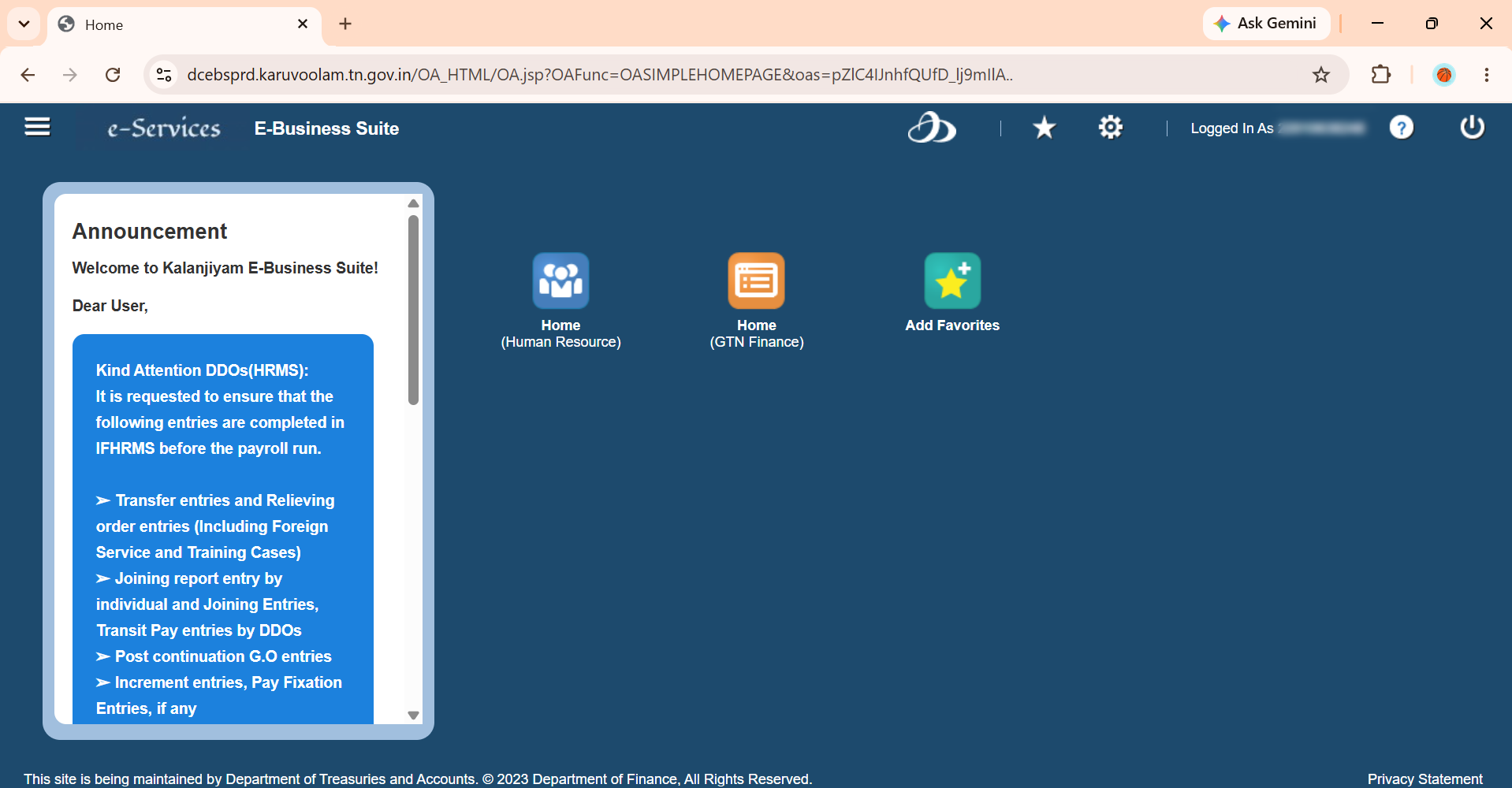
Click Home (GTN Finance). This will open the IFHRMS e-Services page.
You will see several sections in the header. These include Bills, Challan, Adjustments/AM, OML, Challan Distribution, Works Budget and Payroll.
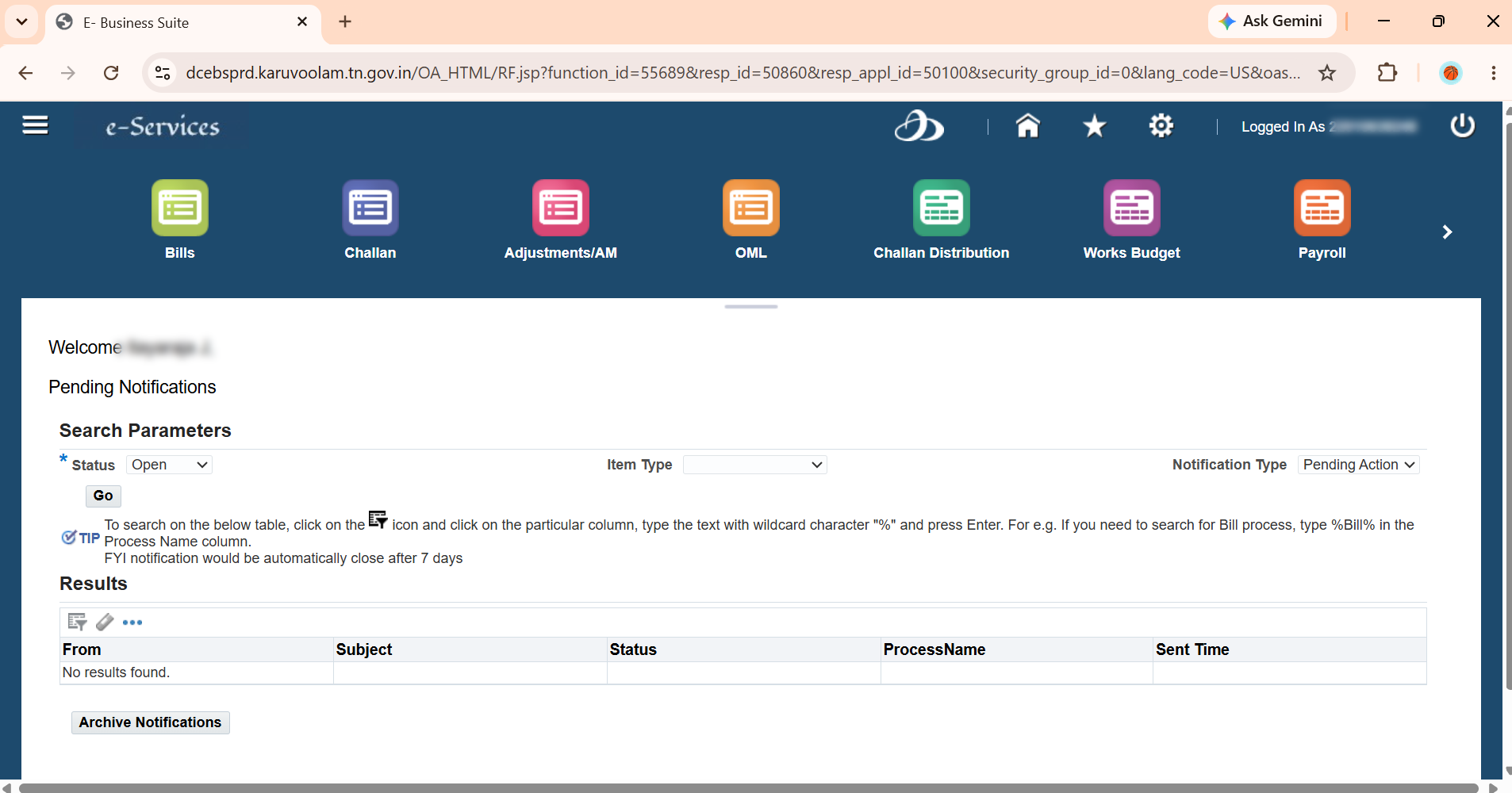
If you do not see Payroll immediately, use the > button to scroll horizontally.
Click Payroll.
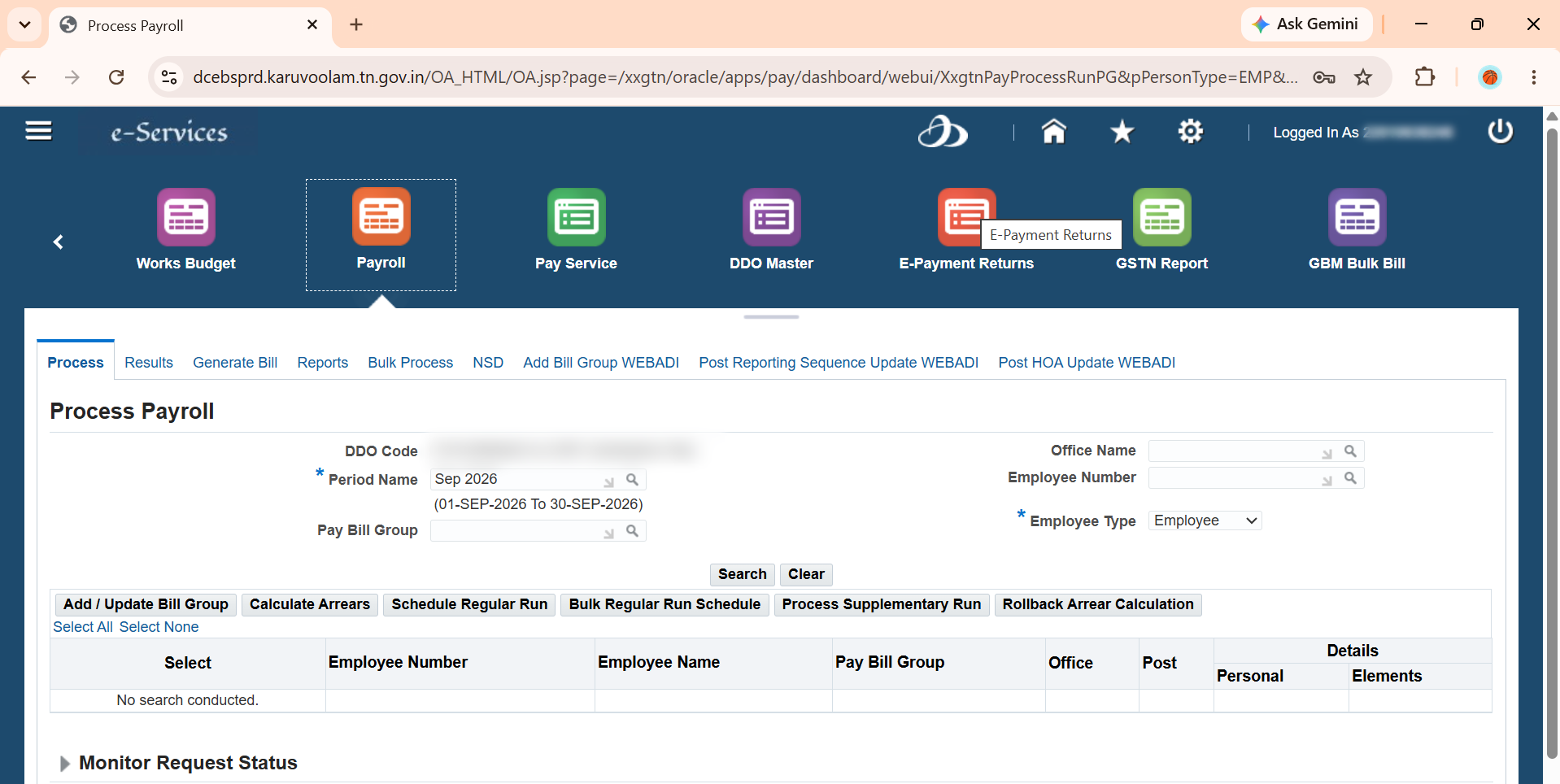
The Payroll section contains several options. These include Process, Results, Generate Bill, Reports, Bulk Process, NSD and other options.
Under Payroll, click Reports.
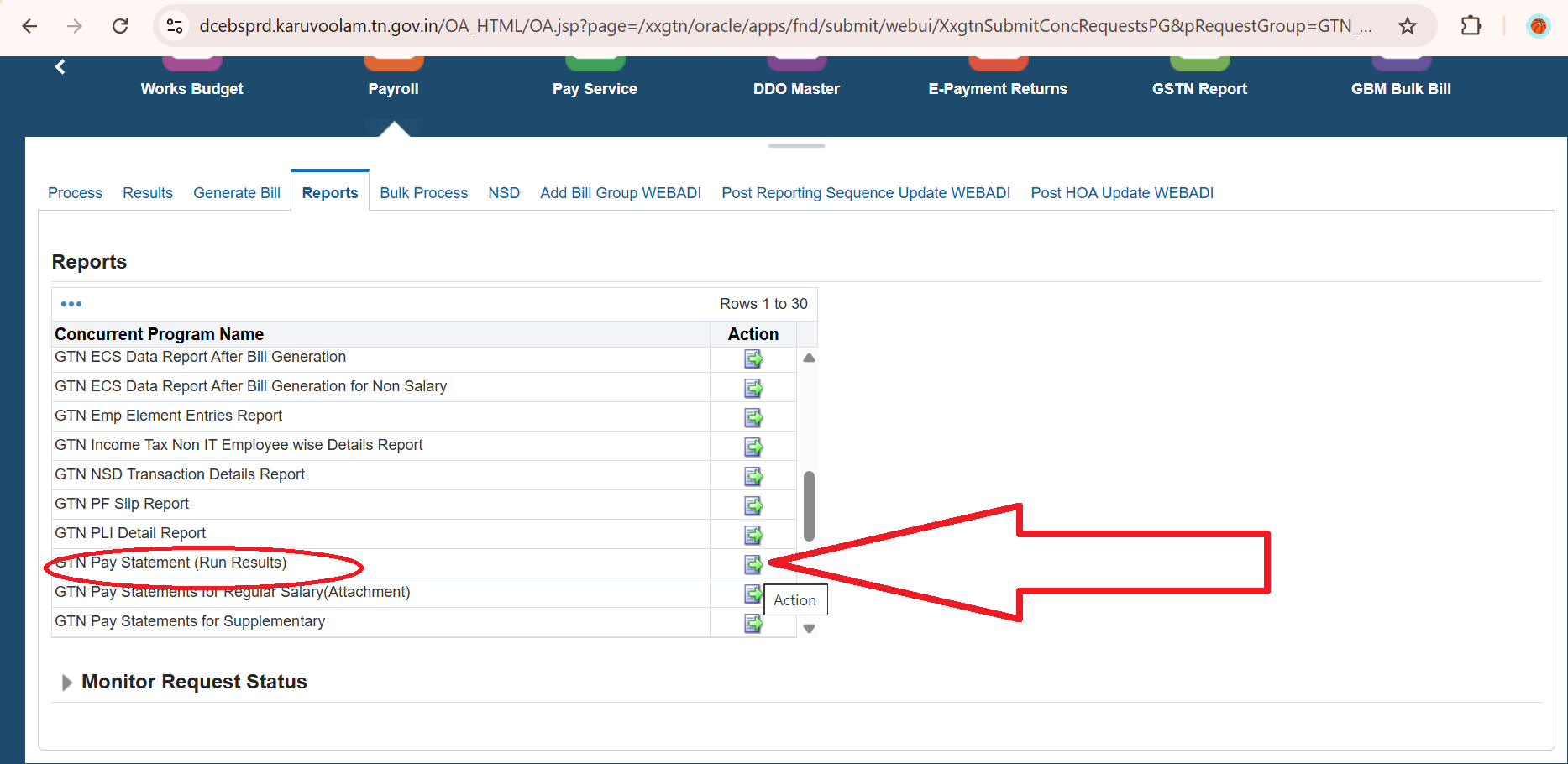
A report page will open with different report options. Use the vertical scroll bar to find:
GTN Pay Statement (Run Results)
Click the Action icon for this report.
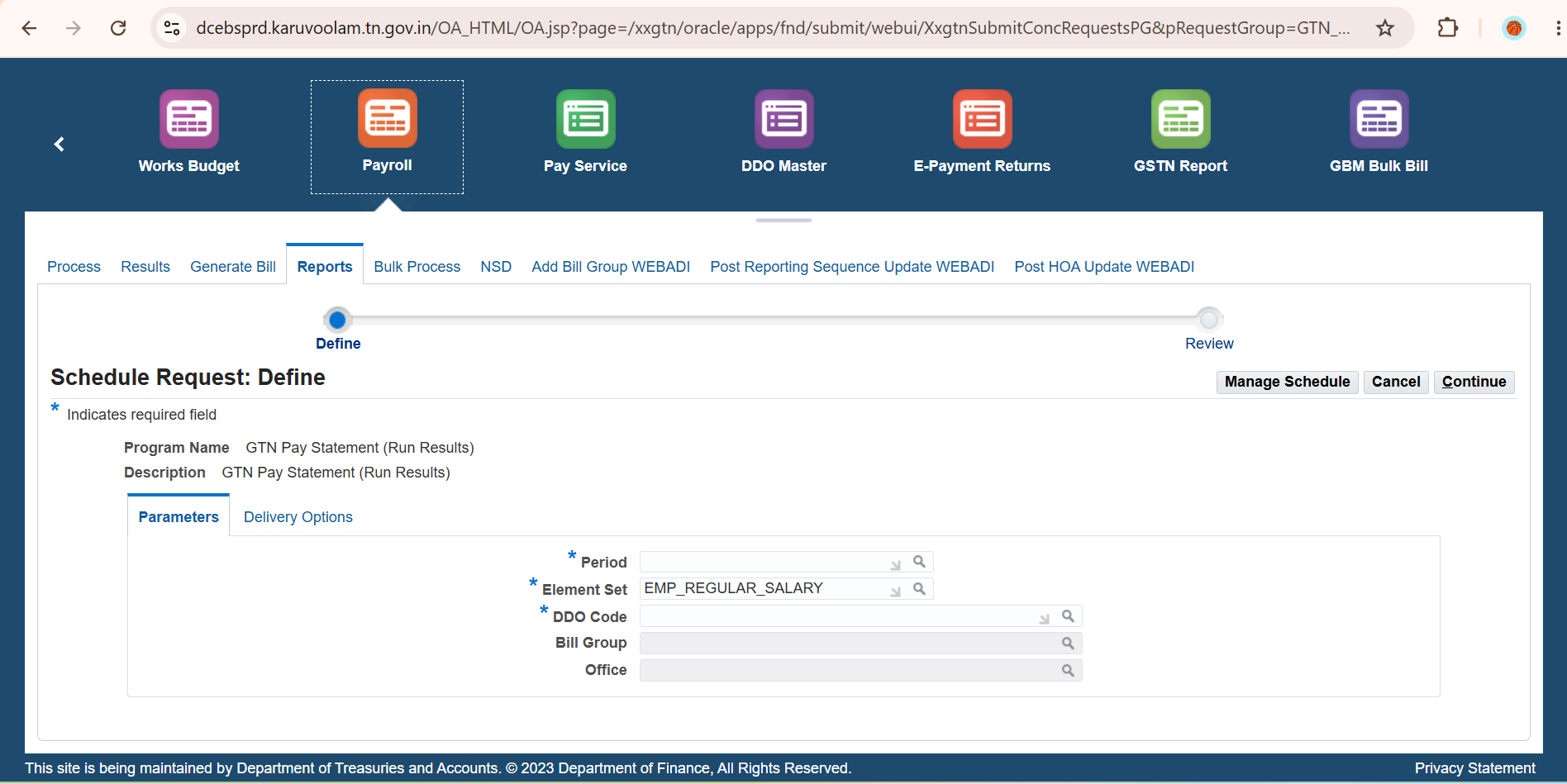
You will go to the Schedule Request: Define page. This page has boxes for Period, DDO Code, Bill Group, and Office.
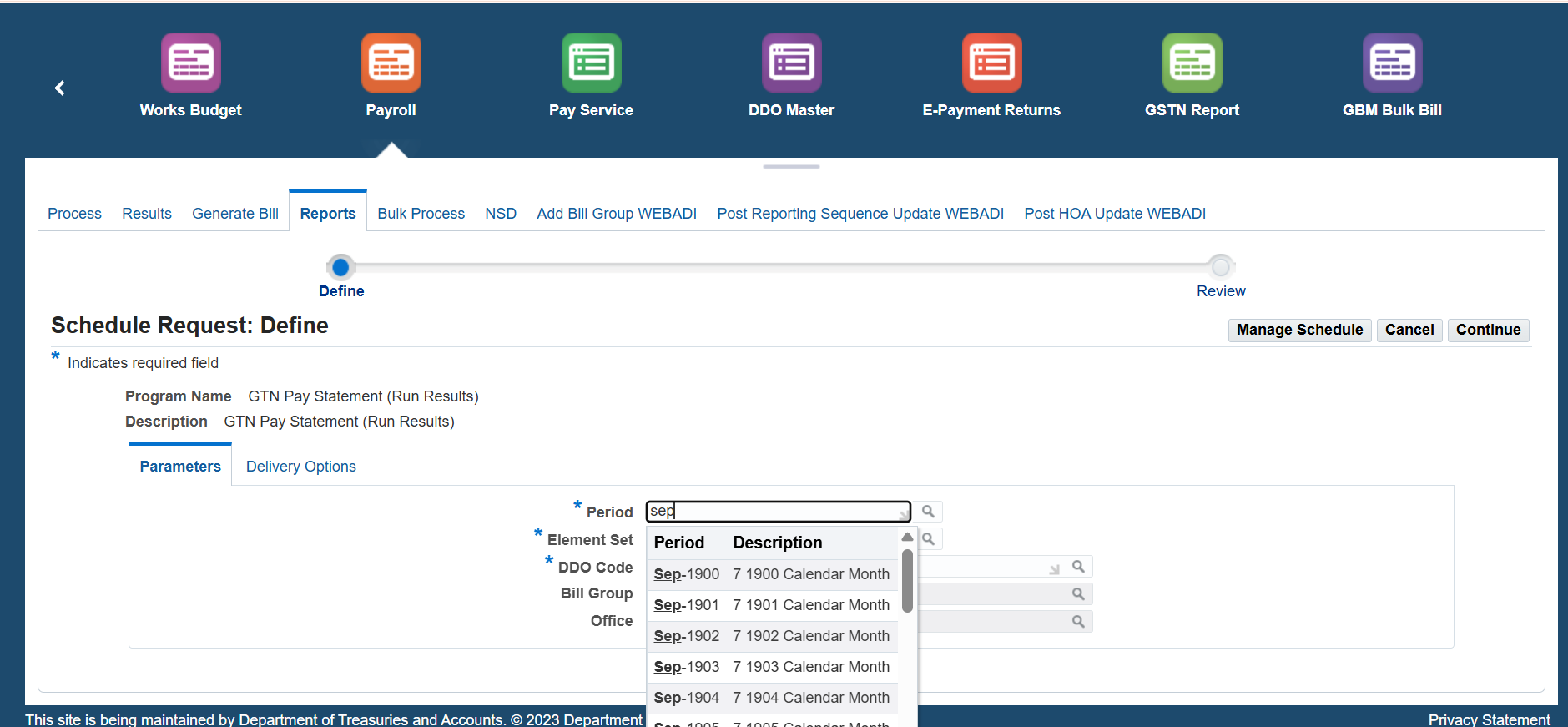
In the Period box, type the first three letters of the month and click Search.
For example, if you want the Run Result for September, type Sep and search.
A dialog box will show year-wise options for that month. Select the year you want (for example, September 2026) and click Select.
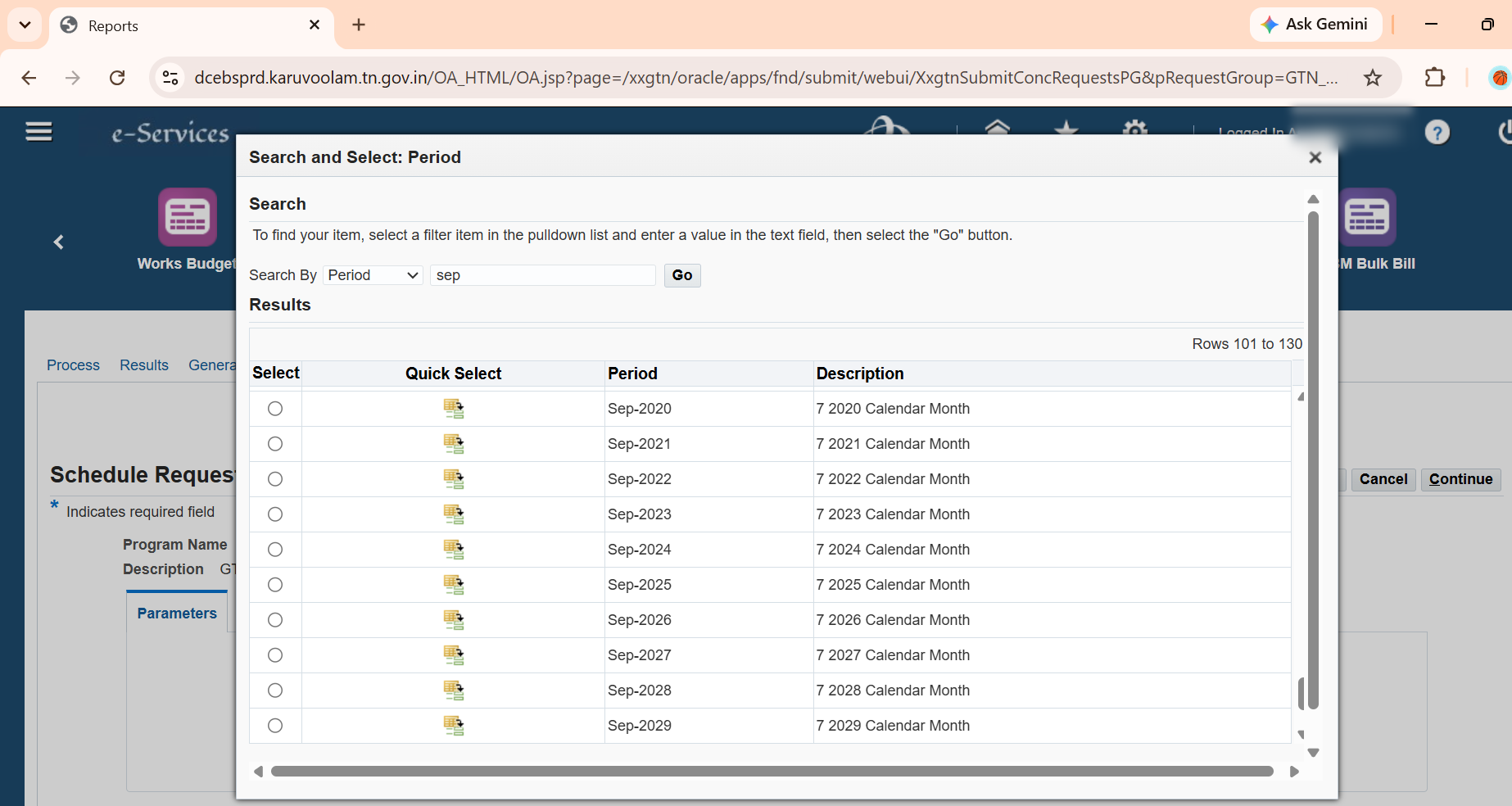
Select your DDO Code based on your office.
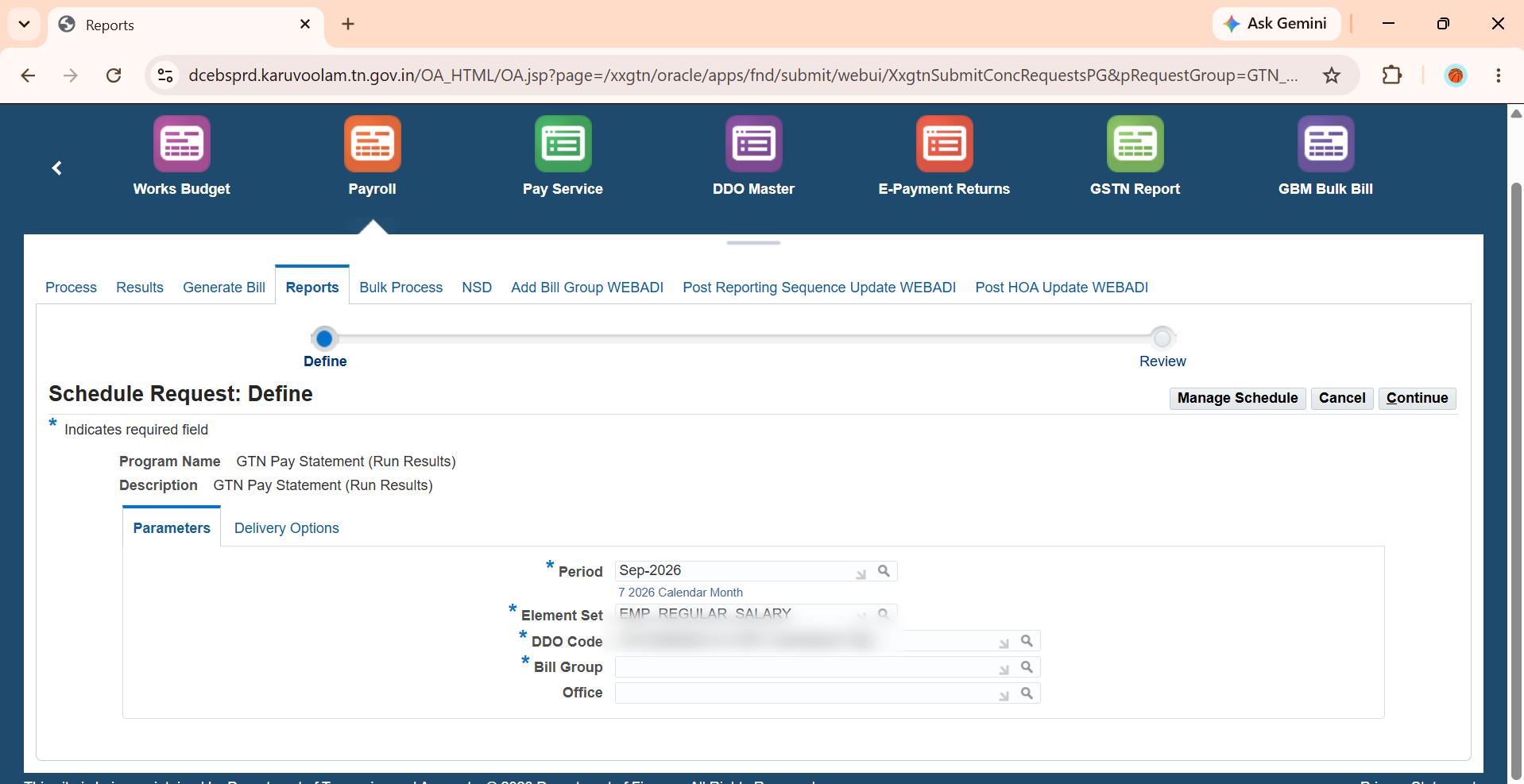
Then type the Bill Group number you want to check and click Search.
A filter dialog box will appear. Select the correct bill group using the radio button and click Select.
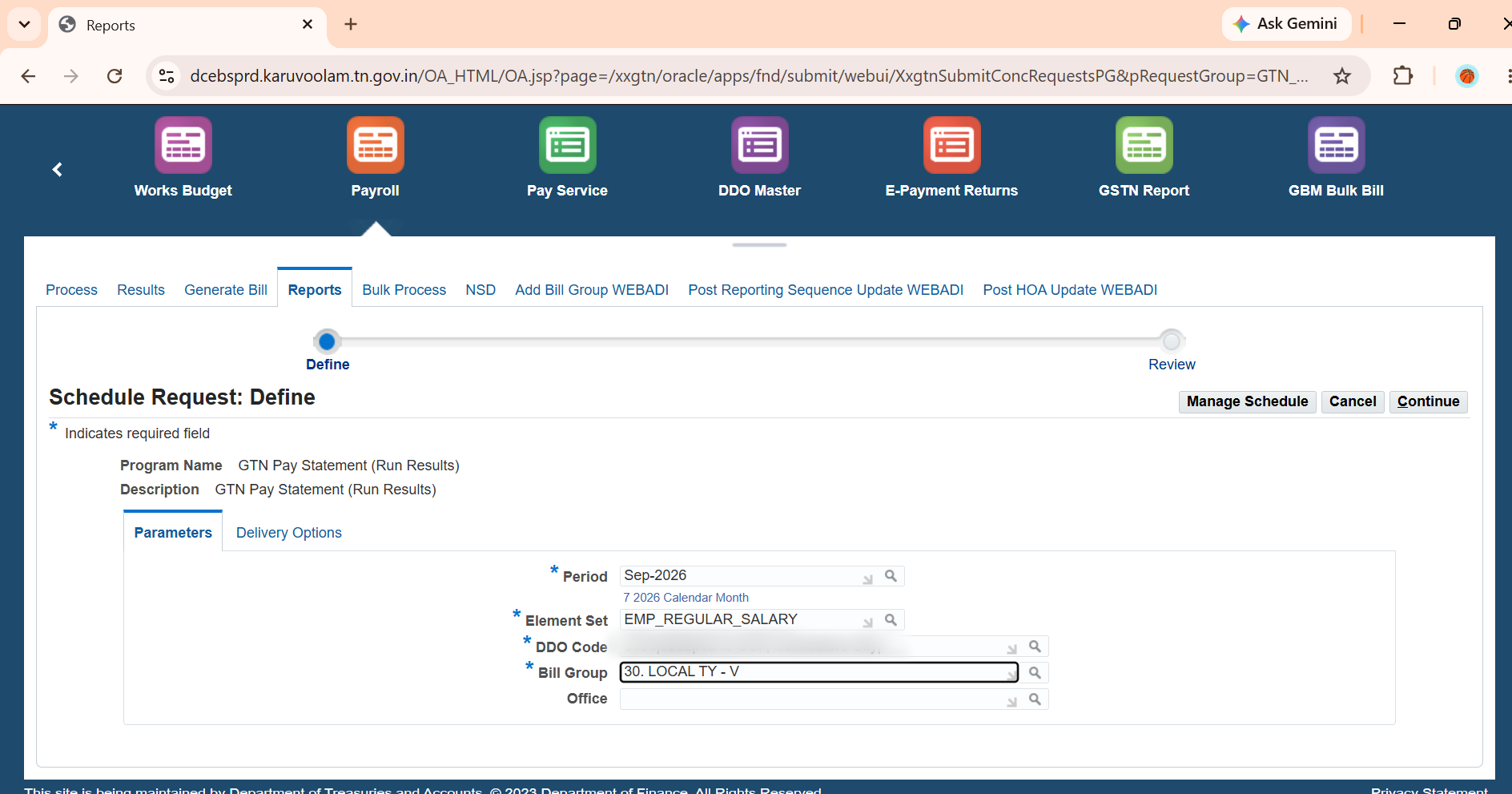
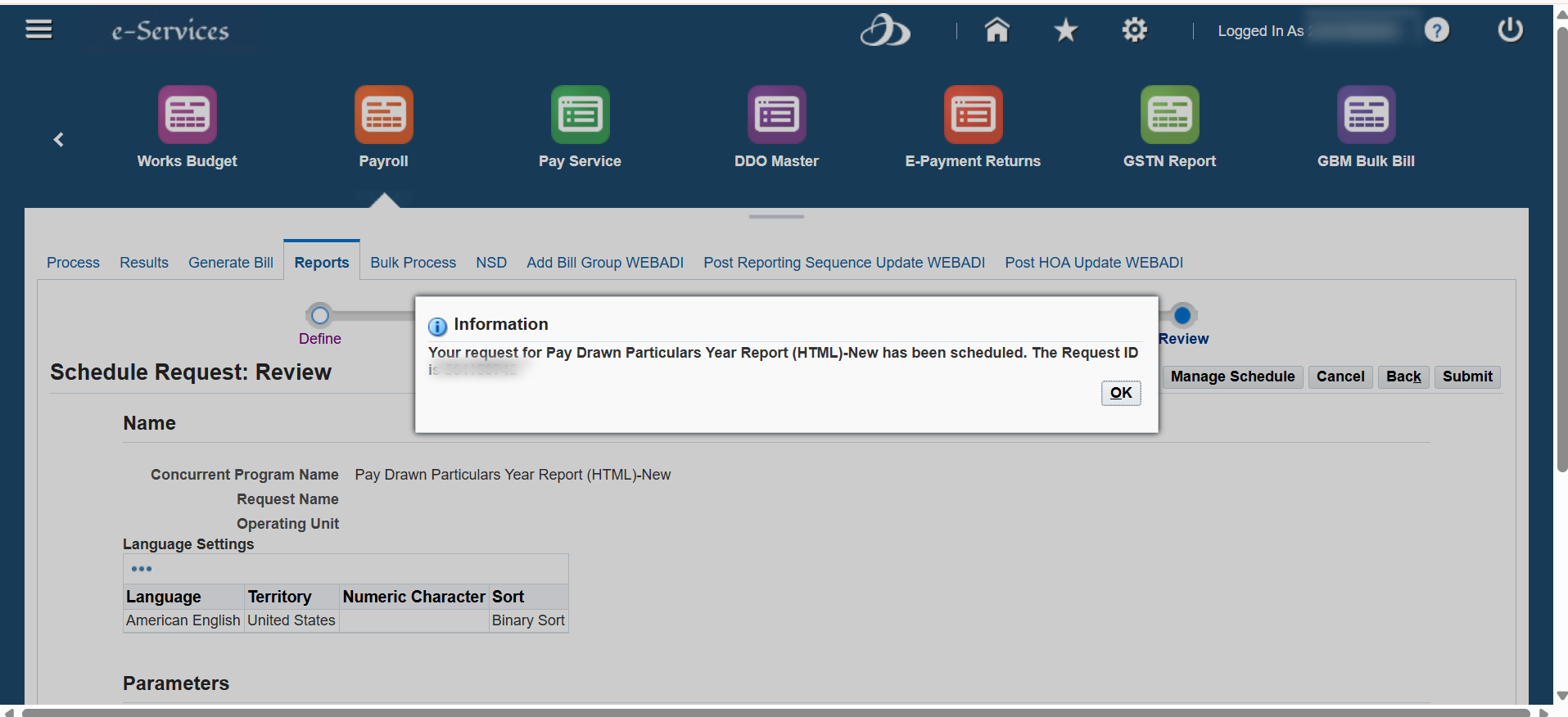
Click Continue. You will go to the Schedule Request: Review page.
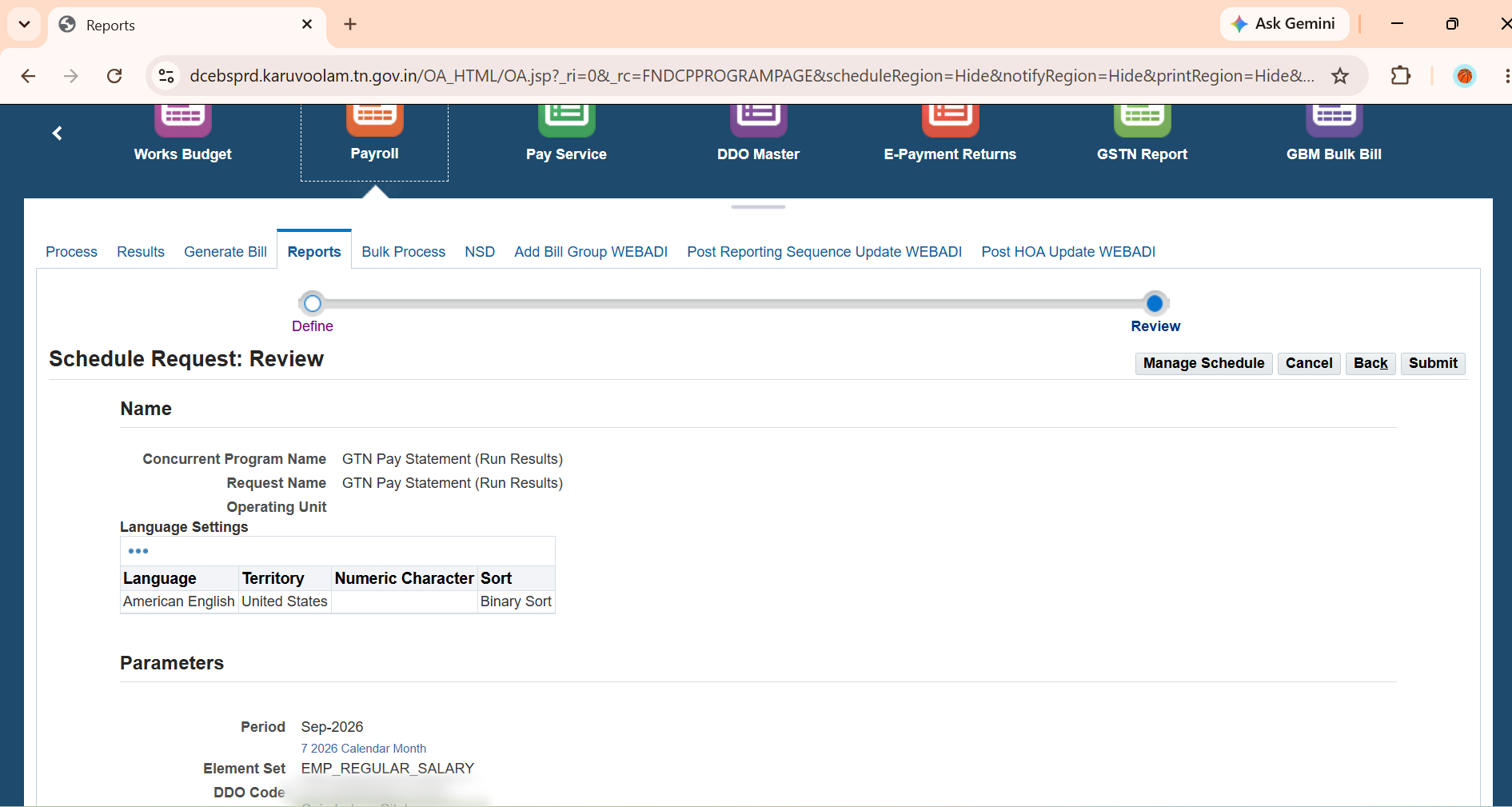
Check the details and click Submit.
A dialog box will show the Request ID that has been scheduled. Click OK.
Click Monitor Request Status.
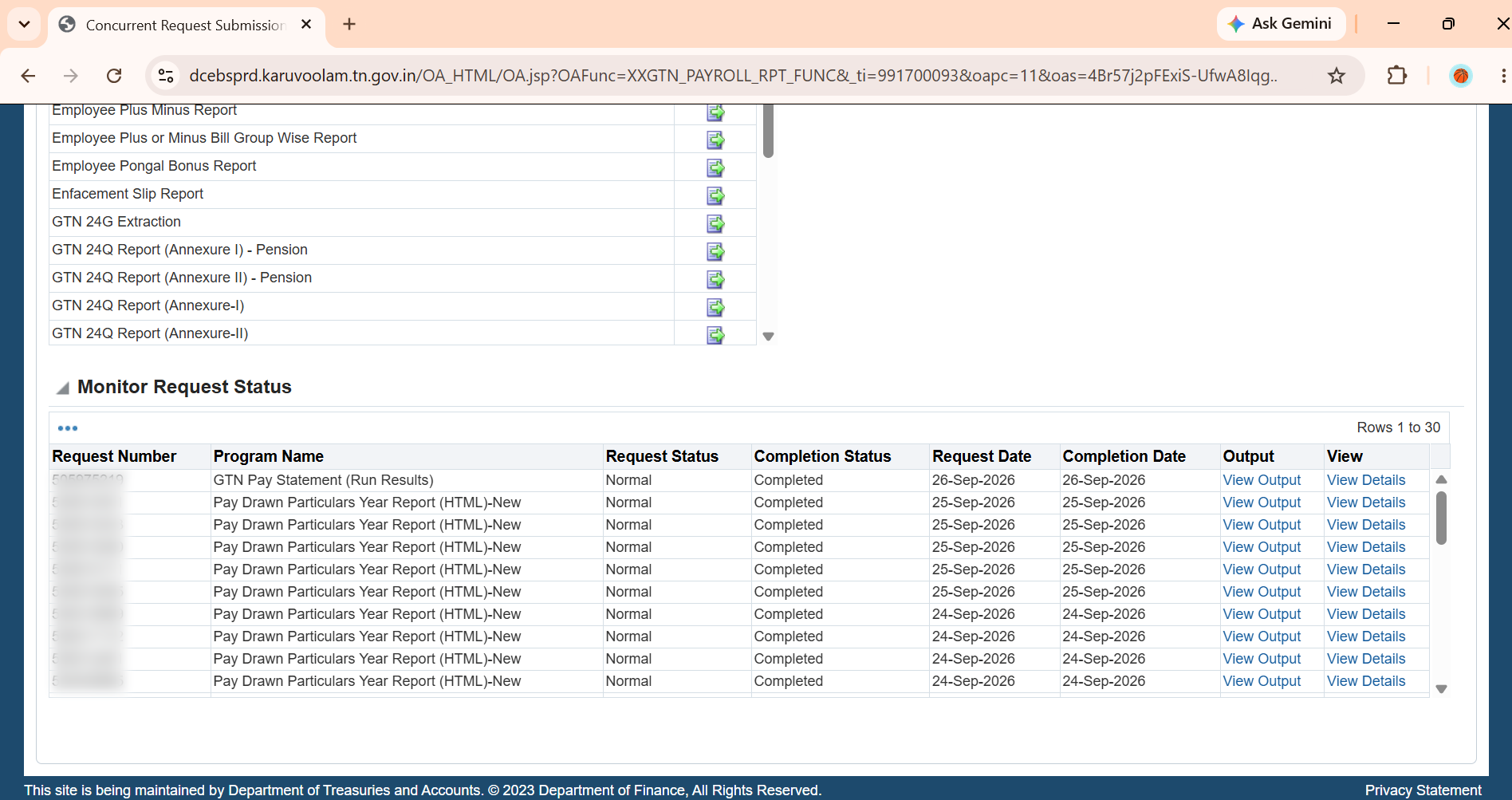
The request results page will show your request details. You can see information such as:
- Request Number
- Program Name (GTN Pay Statement (Run Results))
- Request Status
- Completion Status
- Output
If the Completion Status shows Running, click the three dots below Monitor Request Status and click Refresh.
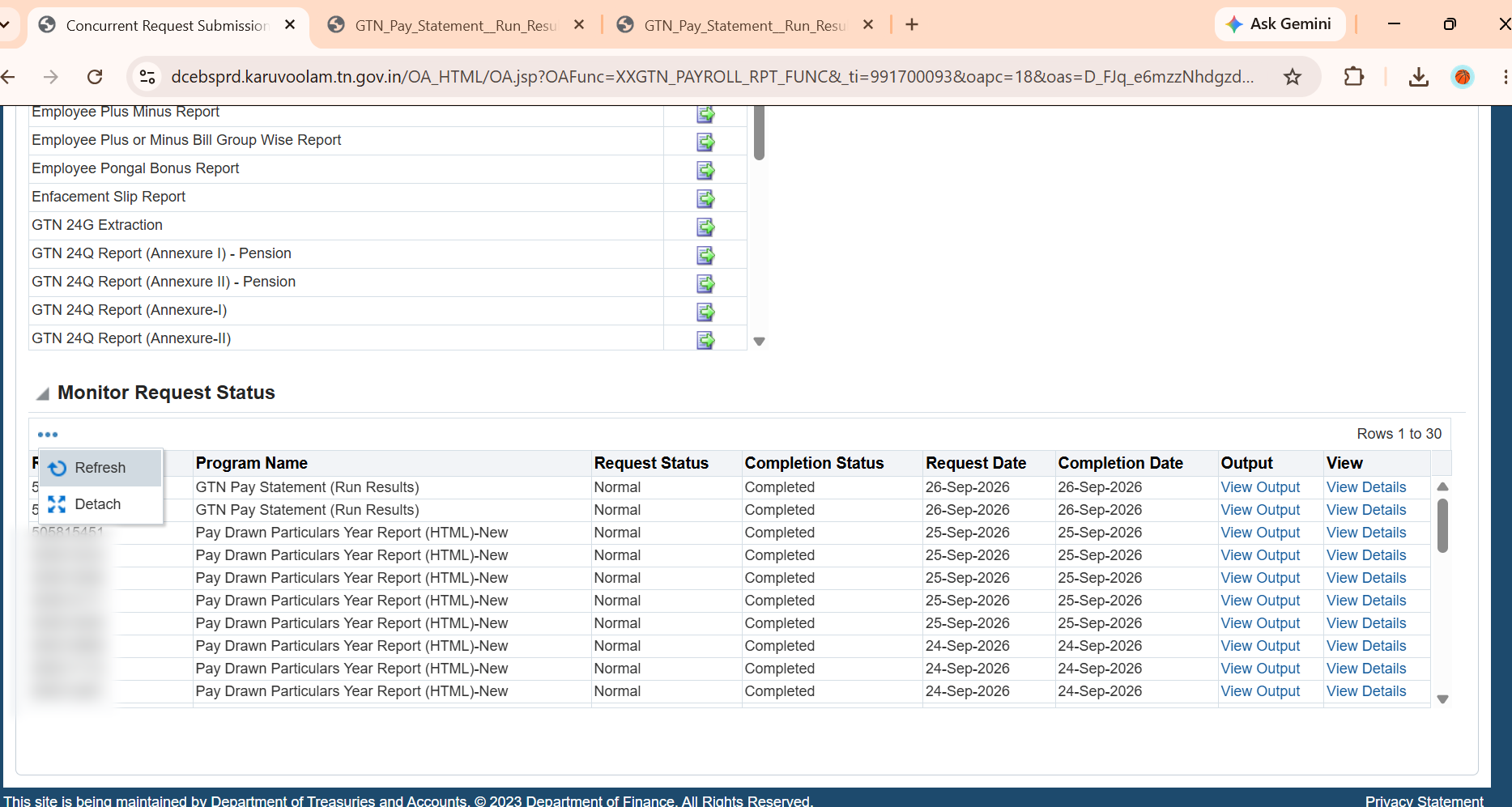
Once the status changes to View Output, click it to download the Run Result HTML file.
Part 2: How to Compare Using the Plus Minus Report Tool
Now you have two HTML files — one for each month, same bill group. Here is how to compare them:
Go to tngovtools.com/plus-minus.
Click the File 1 box and select the previous month's Run Result HTML file. For example, the August file.
Click the File 2 box and select the current month's Run Result HTML file. For example, the September file.
Click the "Compare — Difference paaru" button.
The tool will process both files and show the comparison report in a few seconds.
What the Plus Minus Report Shows
The report gives you a clear breakdown of what changed between the two months:
1. Employees with Dues Changes
If any employee's Duty Pay, Dearness Allowance, HRA, or any other allowance amount is different between the two months, it will be listed here. The report shows:
- The pay head that changed (Duty Pay, DA, HRA, etc.)
- The amount in File 1 (previous month)
- The amount in File 2 (current month)
- The exact difference (how much more or less)
- Whether the pay head was added, removed, or changed
2. New Employees
If an employee is present in the current month's file but not in the previous month's file, they will be listed as a new addition. This happens when a new person joins the bill group.
3. Removed Employees
If an employee was in the previous month's file but is missing from the current month's file, they will be listed as removed. This happens when someone is transferred out, retired, or moved to a different bill group.
4. No Change
Employees whose Dues are exactly the same in both months are counted but not listed individually — because there is nothing to report for them.
Upload both HTML files and get the Plus Minus report instantly. No login needed, no software to install.
Open Plus Minus Report Tool →What If I Upload Different Bill Groups?
The tool works best when both files are from the same bill group for two different months. This is the normal use case for monthly scrutiny.
If you accidentally upload files from different bill groups, the tool will show a warning message. Different bill groups have completely different employee lists, so the comparison will show many "added" and "removed" employees that are not real changes — they are just different people in different groups.
Always check that both files are from the same bill group before comparing. The tool checks the REF Number from both files and tells you if they match.
Frequently Asked Questions
1. What is a Plus Minus Report?
A Plus Minus Report compares two months of IFHRMS Pay Run Results and shows the differences in employee Dues. It tells you which pay heads changed, which employees were added or removed, and the exact amount difference for each change.
2. Where do I find Run Results in IFHRMS?
Go to Payroll → Reports → GTN Pay Statement (Run Results). Enter the period, DDO code, and bill group number, then submit and download.
3. Can I compare different bill groups?
The tool works best with the same bill group for two different months. If you upload different bill groups, the tool will show a warning because the employee lists will be completely different.
4. Does the tool compare Deductions also?
No. The tool compares only the Dues section (Duty Pay, DA, HRA, allowances, etc.) because that is what the treasury bill officer asks about during scrutiny. Deductions and NSD are not compared.
5. Is my salary data safe?
Yes. The files are processed on the server only during the comparison and deleted immediately after. No employee data is stored, logged, or shared.
6. How many employees can it handle?
The tool can handle Run Result files with hundreds of employees. There is a 50 MB file size limit per file.