How to Download Pay Drawn IFHRMS Year Report
If you are searching for how to download Pay Drawn IFHRMS, this guide will help you download the Pay Drawn Particulars Year Report. You can get the report from the IFHRMS portal through the Payroll section.
The report can show the pay drawn details for an employee for a selected financial year. The report is available as an HTML output. You first need to submit a report request in IFHRMS.
You can upload the HTML file to our free tool and view the data in a cleaner format.
Open Pay Drawn Easy View →
IFHRMS Pay Drawn Report Menu Path
The main menu path for the report is:
Payroll → Reports → Pay Drawn Particulars Year Report (HTML) - New
You will need your IFHRMS login details, Financial Year and Employee Number.
How to Download Pay Drawn IFHRMS Report
Go to the official Tamil Nadu IFHRMS website: karuvoolam.tn.gov.in.
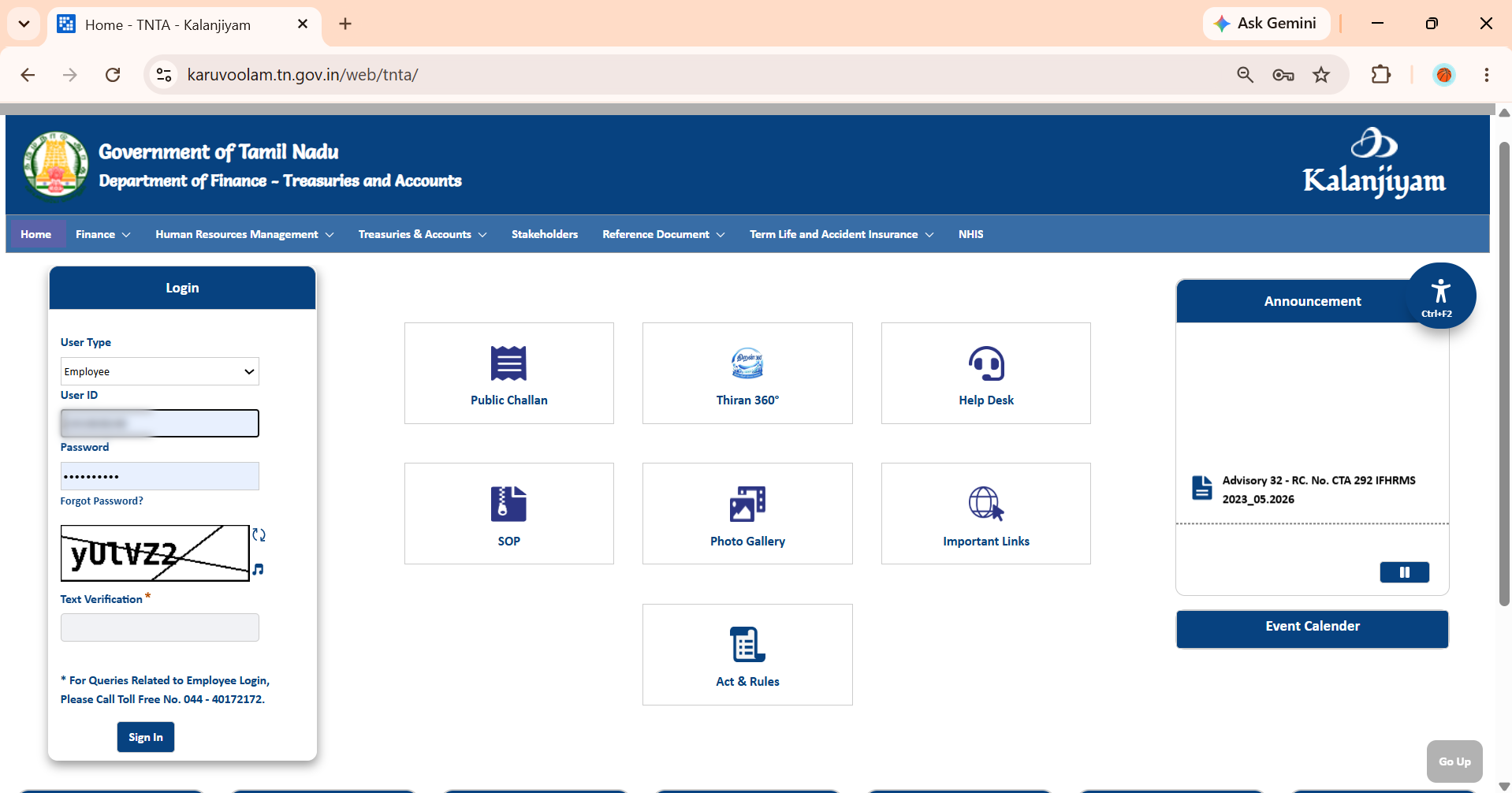
Select the correct user type on the login page.
In most cases, government employees should select Employee. If you are a pensioner, select Pensioner. For other users, select the respective user type.
Enter your User ID and Password. Enter the text verification shown on the page. Then click Sign In.
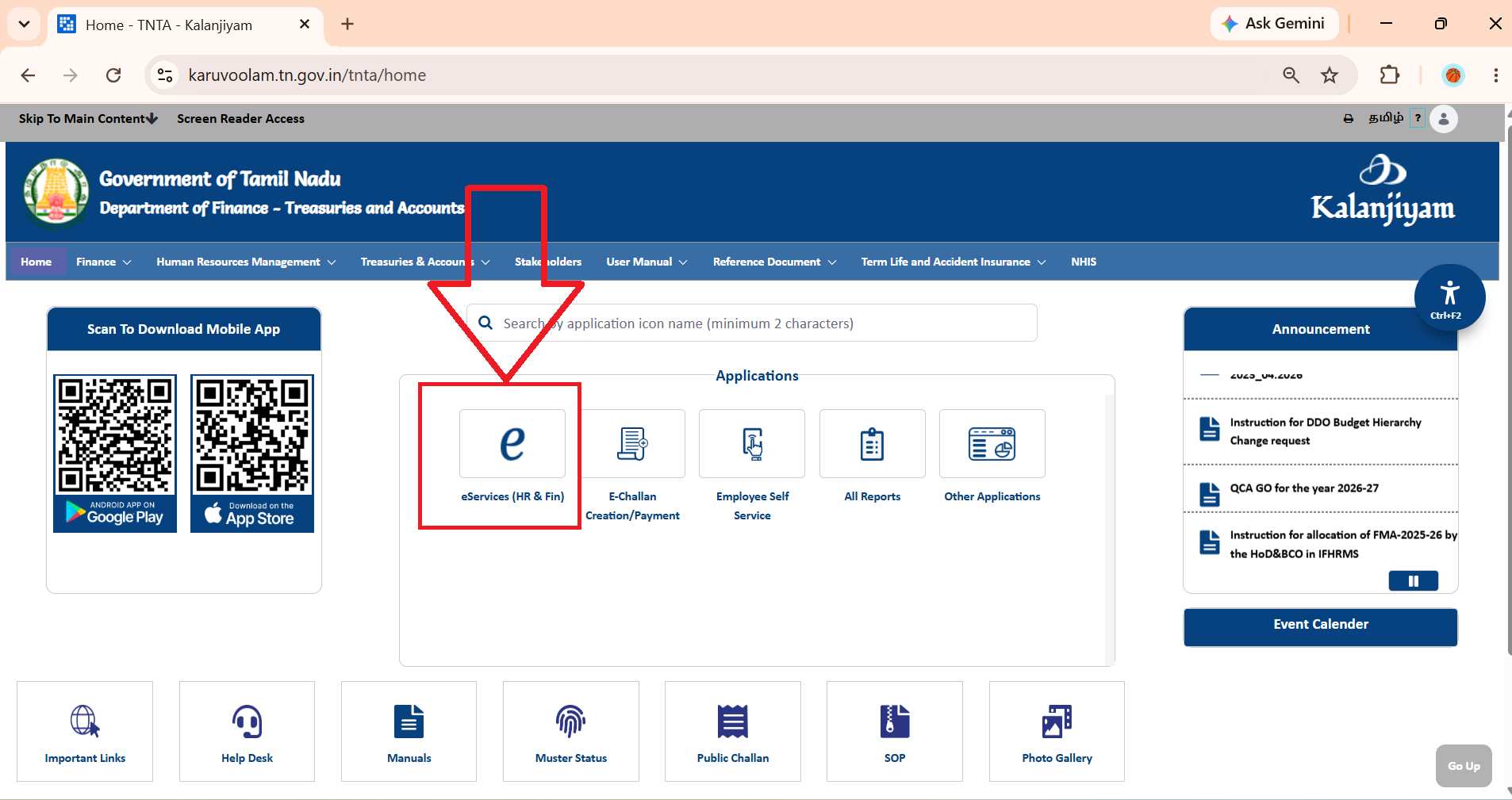
After login, you will see the IFHRMS home page. Click eServices (HR & Fin).
You will then see the e-Services E-Business Suite page. It contains icons such as Home (Human Resource), Home (GTN Finance) and Add Favorites.
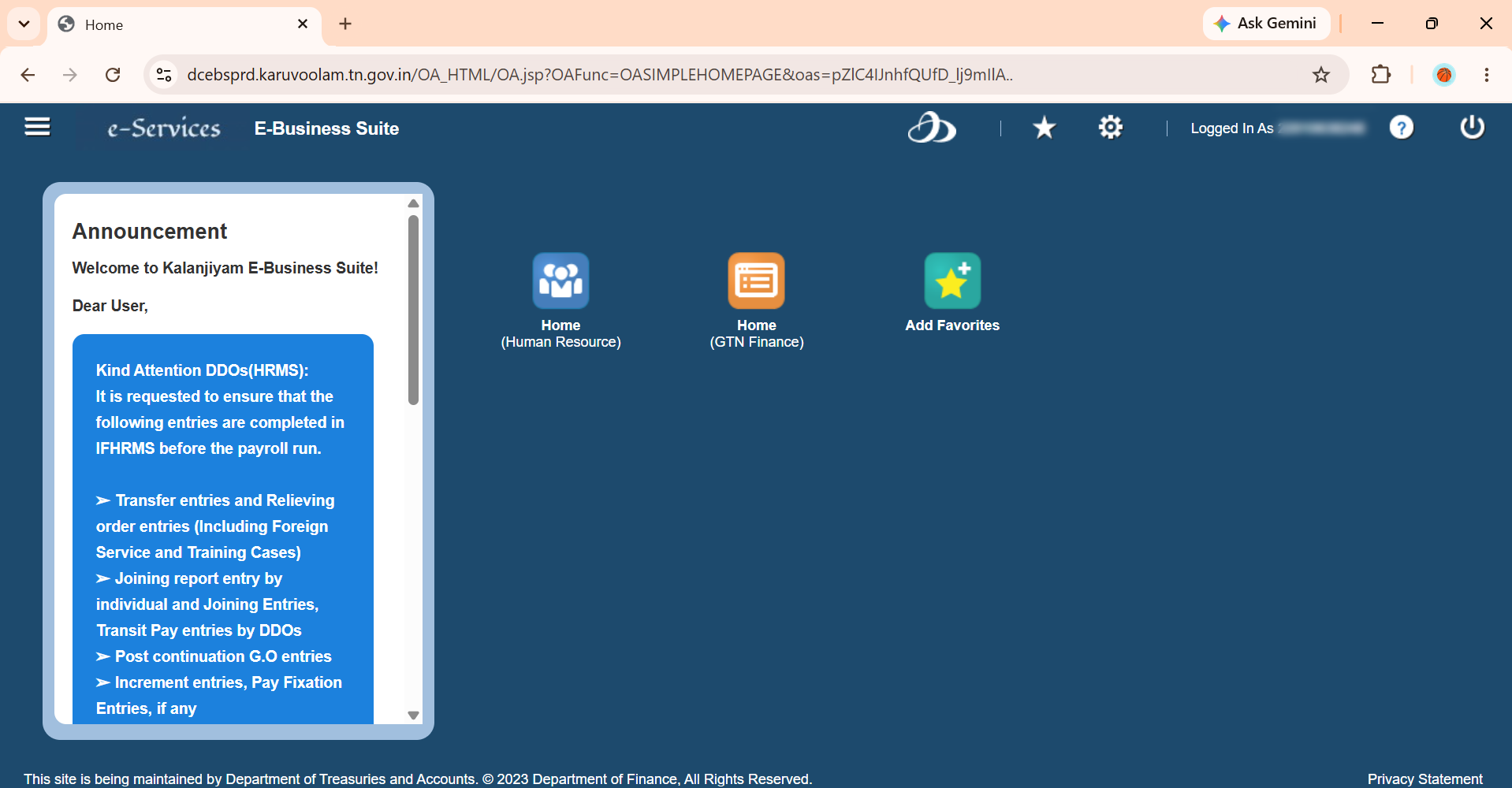
Click Home (GTN Finance). This will open the IFHRMS e-Services page.
You will see several sections in the header. These include Bills, Challan, Adjustments/AM, OML, Challan Distribution, Works Budget and Payroll.
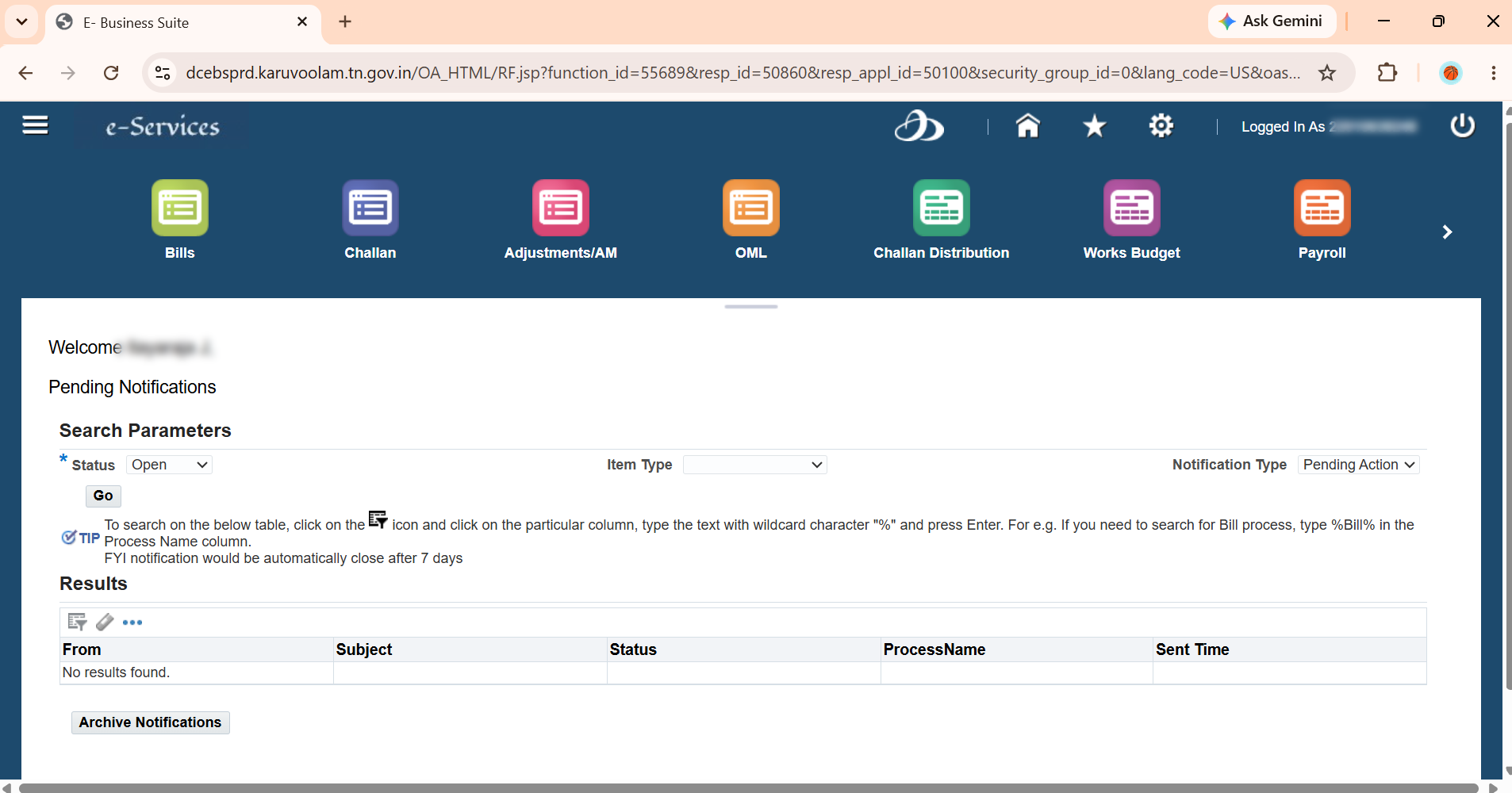
If you do not see Payroll immediately, use the > option to scroll horizontally.
Click Payroll.
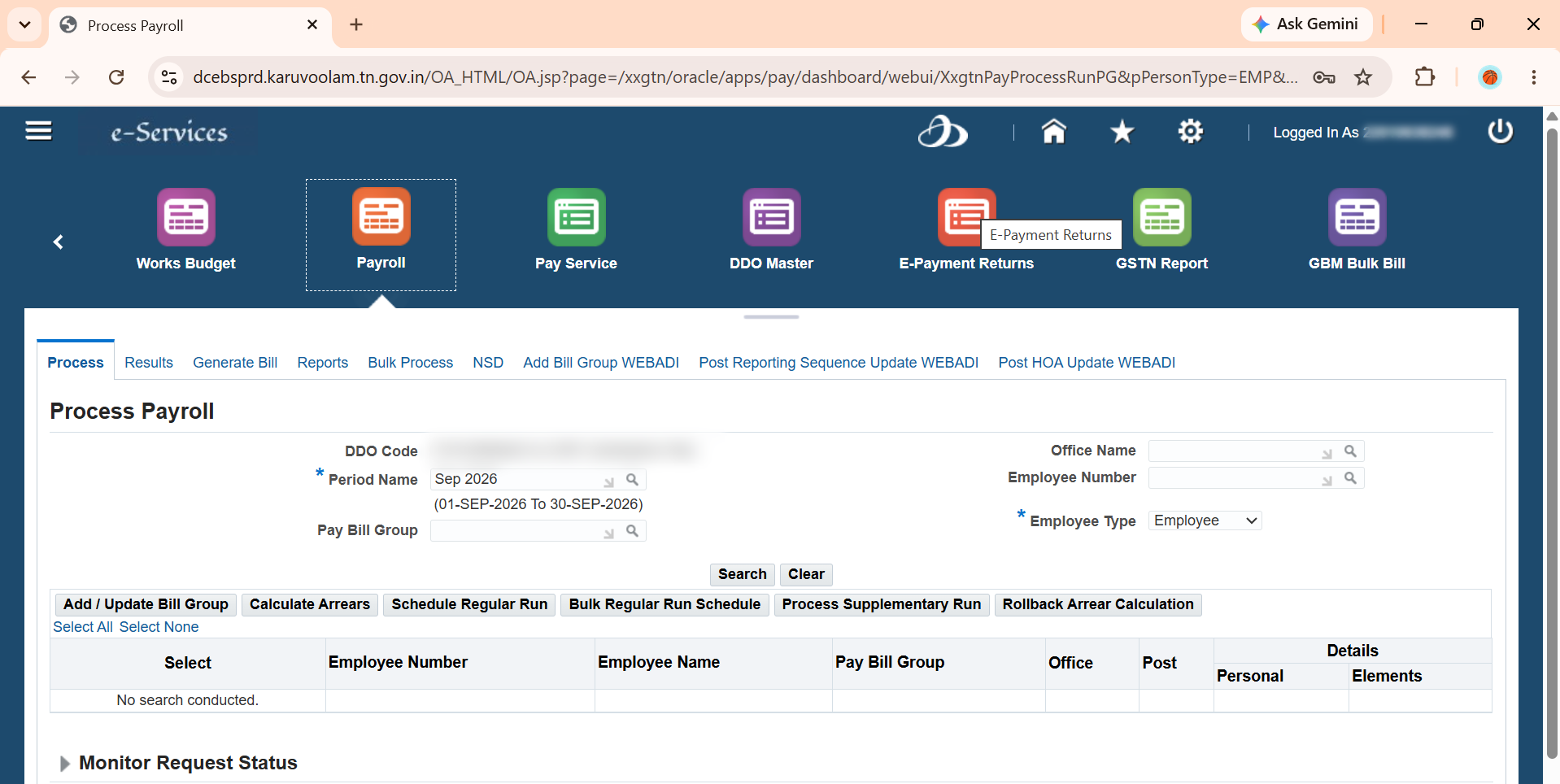
The Payroll section contains several options. These include Process, Results, Generate Bill, Reports, Bulk Process, NSD and other options.
Under Payroll, click Reports.
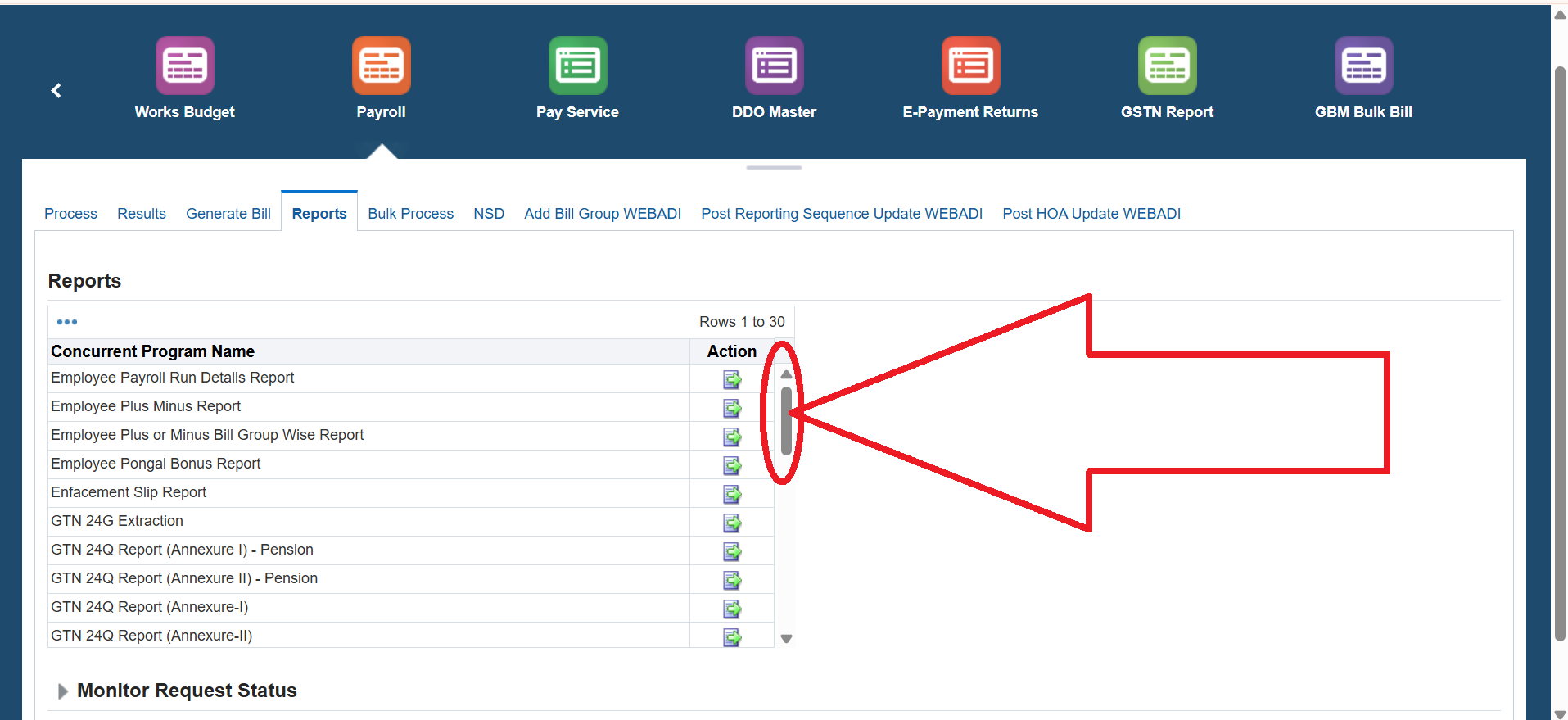
A report page will open with different report options. Use the vertical scroll bar to find:
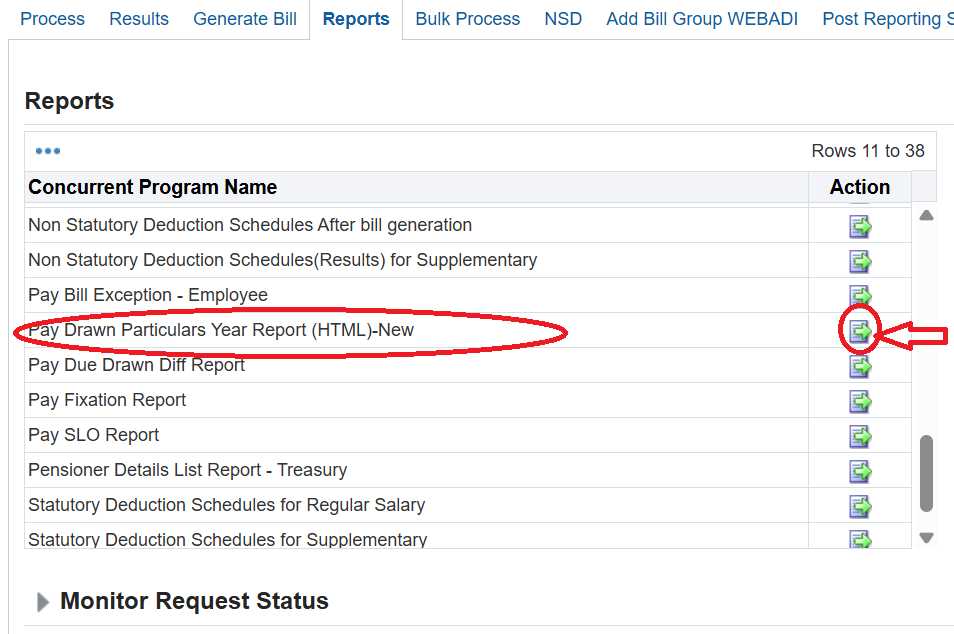
Pay Drawn Particulars Year Report (HTML) - New
Click the Action icon for this report.
The IFHRMS Pay Drawn Data Feed page will open. You will see a Parameters section.
Enter the required Financial Year.
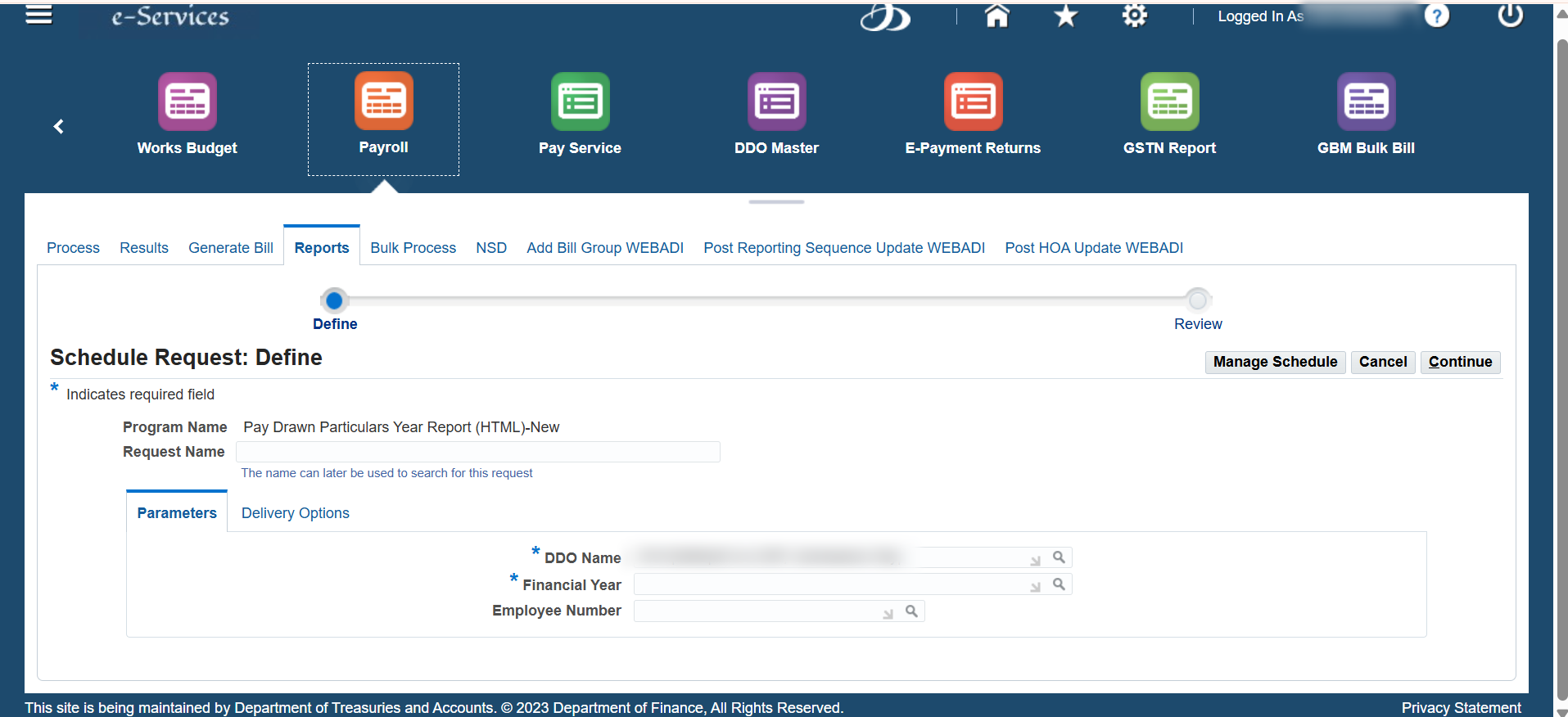
For example, if you want the report for financial year 2025-2026, type:
2025-2026
A suggestion box should appear. Select 2025-2026 from the suggestion.

In the Employee Number field, enter or select the required IFHRMS Employee Number.
A suggestion box should show the employee name connected with the selected IFHRMS Employee Number.
Select the correct employee and click Continue.
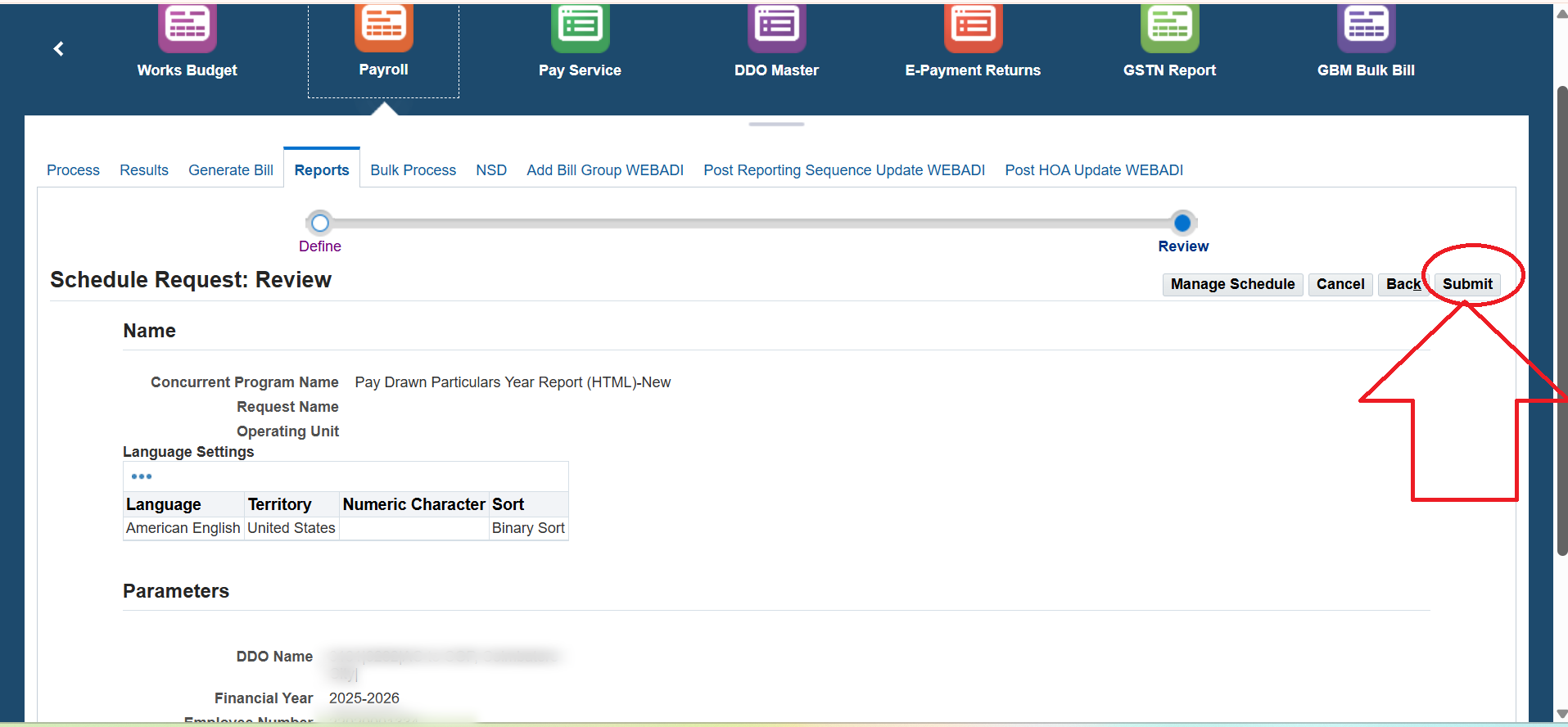
You will now see the Schedule Request Review page.
Check the details and click Submit.
An information dialog box will appear. It will confirm that your Pay Drawn Particulars Year Report request has been scheduled.
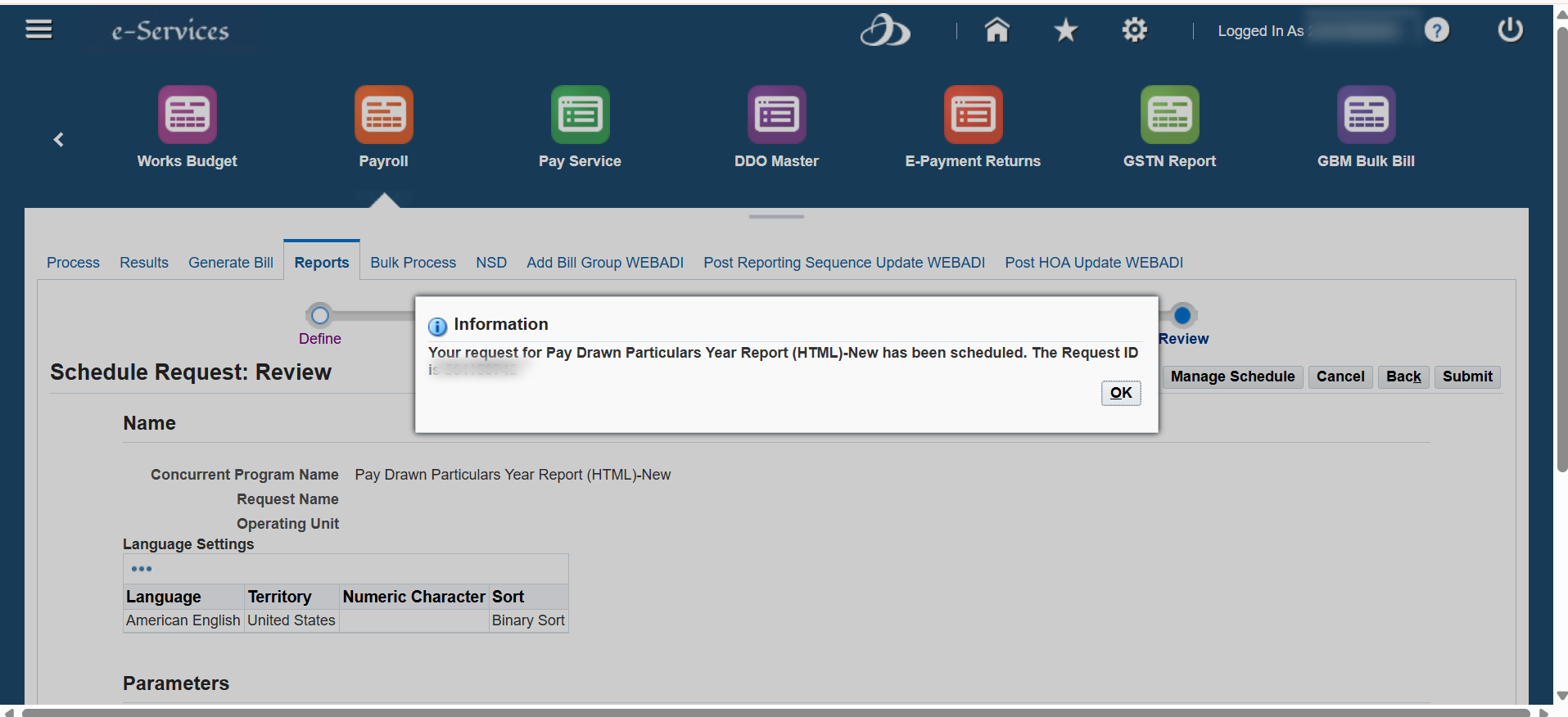
IFHRMS will show a request ID. This is a dynamic number and can be different for each request.
Click OK.
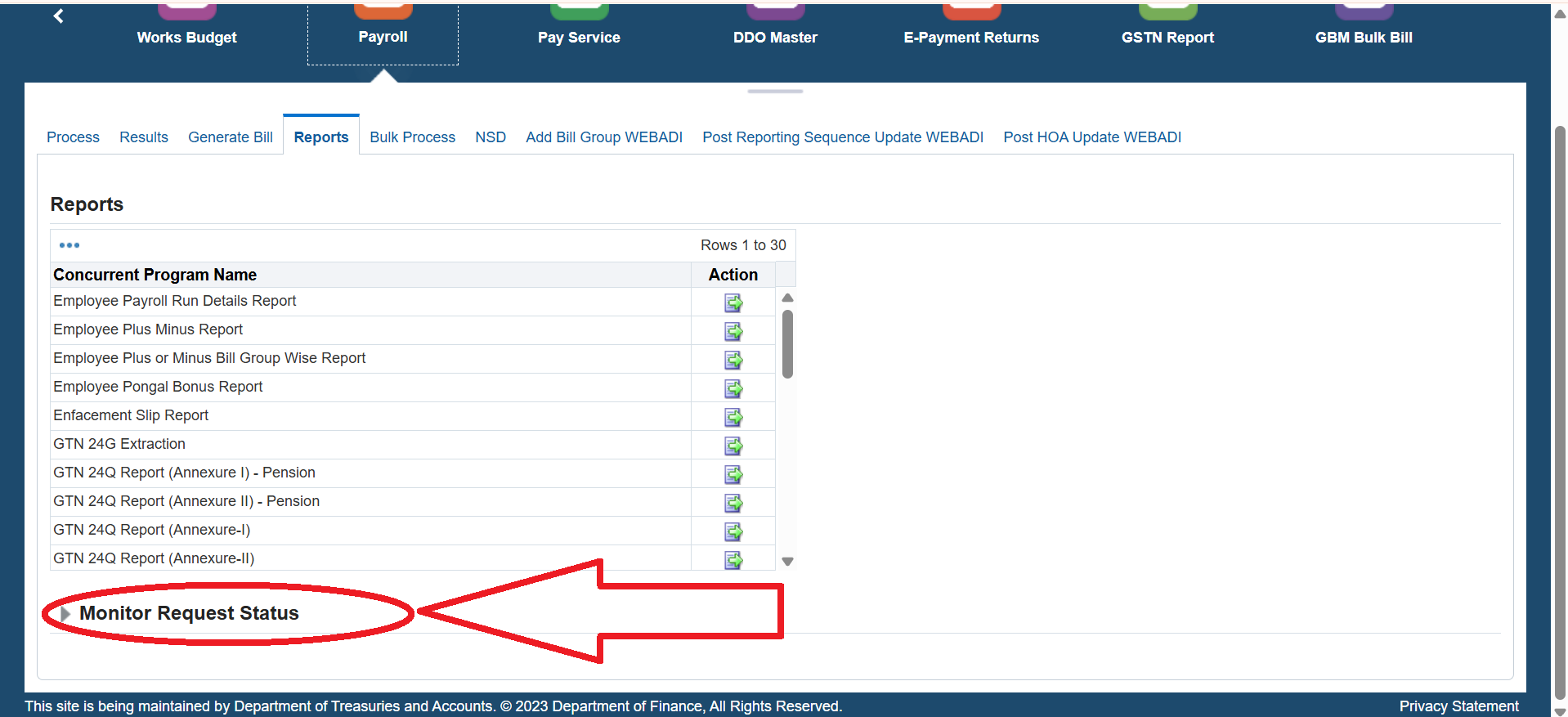
You will return to the Reports page.
Find and click Monitor Request Status.
The request results page will show your request details.
You can see information such as:
- Request Number
- Program Name
- Request Status
- Completion Status
- Request Date
- Completion Date
- Output
- View
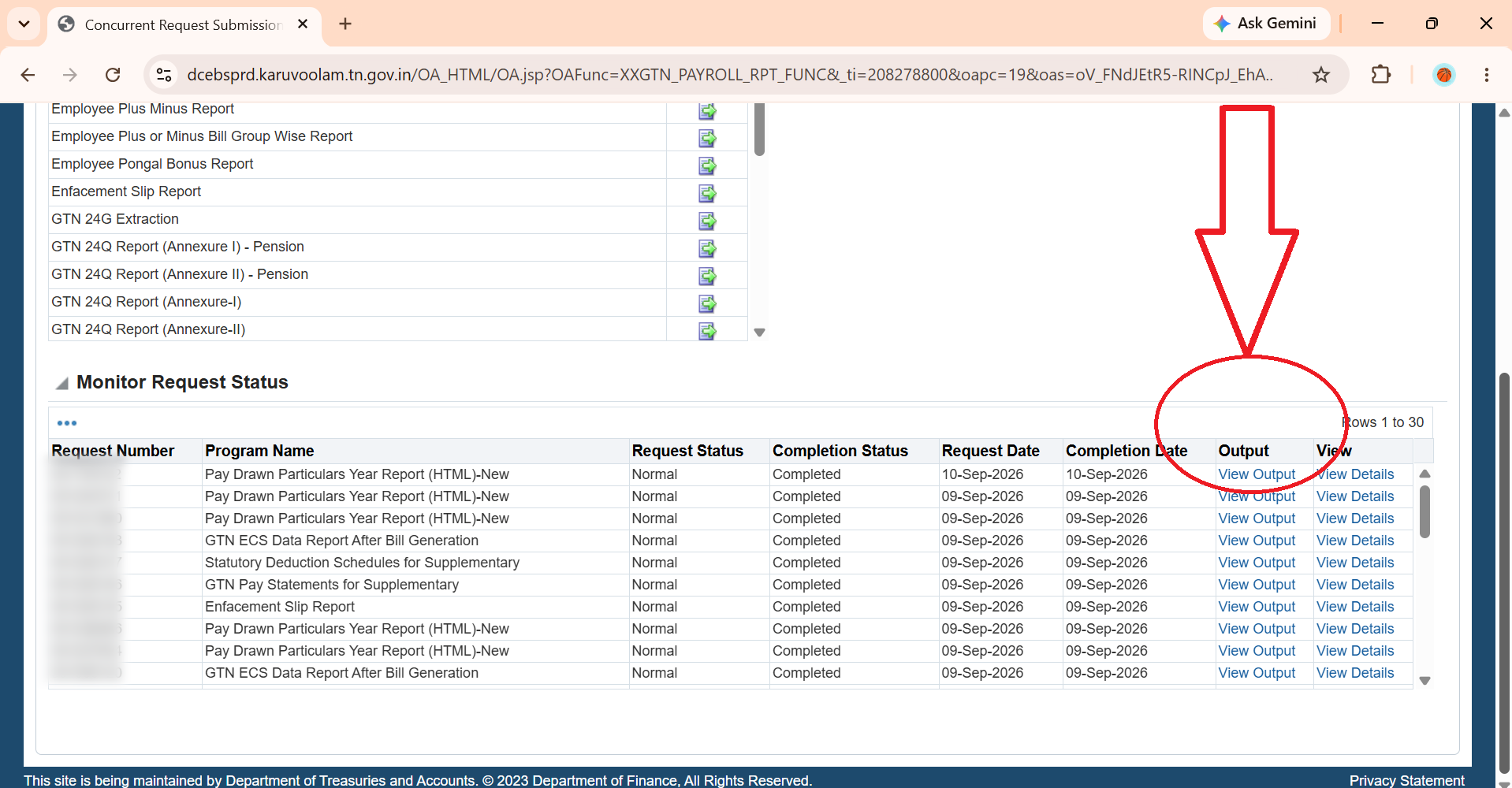
Check the Completion Status.
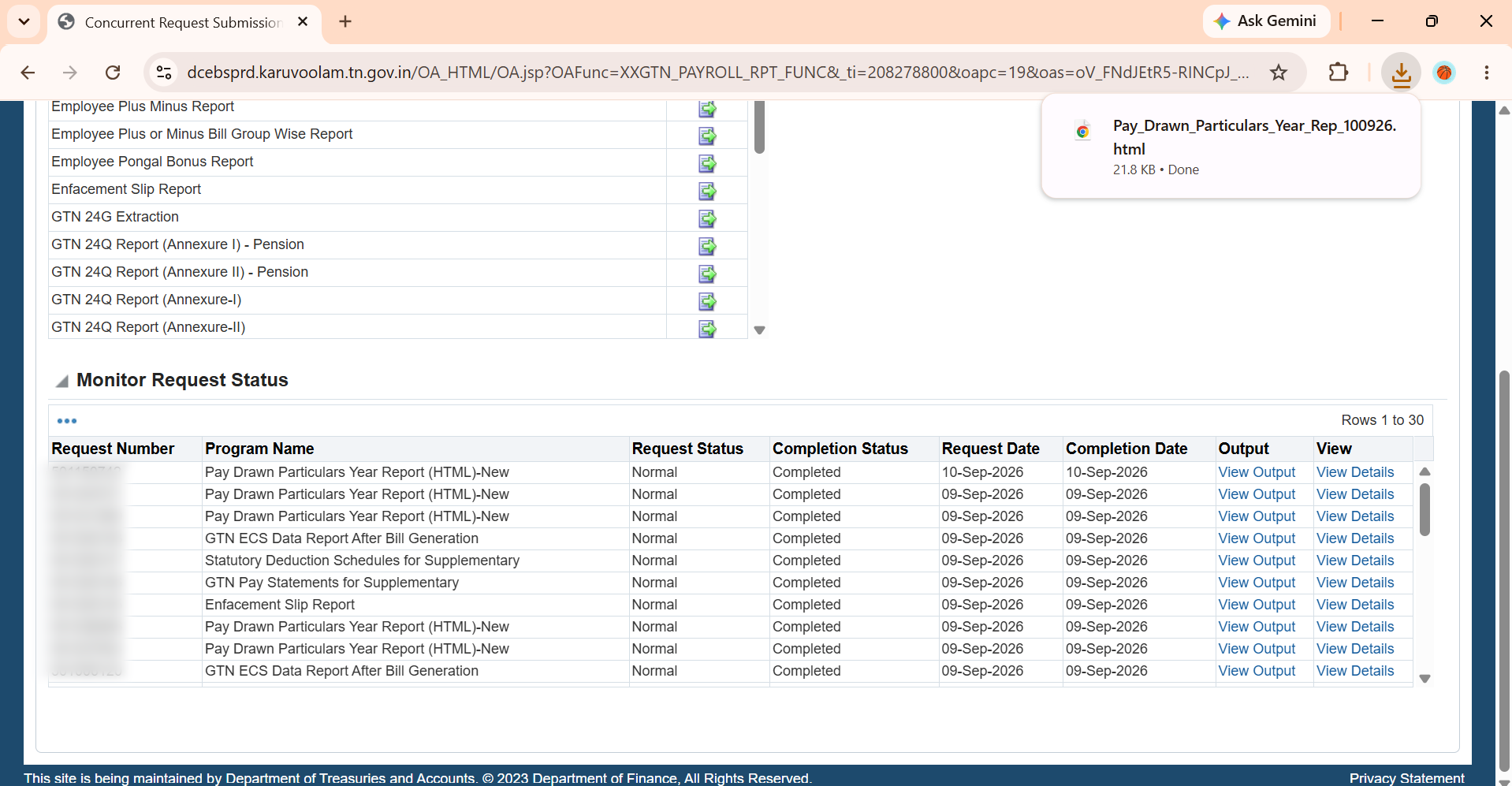
If it shows Completed, click View Output under the Output section.
This will give you the Pay Drawn Particulars Year Report for the selected financial year.
If the status shows Running, wait for the request to finish. Check Monitor Request Status again later.
How to View Your IFHRMS Pay Drawn Report Easily
The IFHRMS Pay Drawn report can be difficult to read because the output is provided as an HTML report.
If you want a cleaner view of the information, you can use our Pay Drawn Easy View tool.
Upload your downloaded IFHRMS Pay Drawn HTML file. The tool helps you view the monthly pay details in a structured format.
Open Pay Drawn Easy View →What Information Do You Need?
Before starting the report request, keep these details ready:
- Your IFHRMS User ID
- Your IFHRMS Password
- The required Financial Year
- The Employee Number
For example, for the financial year 2025-2026, select 2025-2026 from the Financial Year suggestion.
Common Problem: Report Shows Running
Sometimes the report may not be ready immediately after submission.
If the Completion Status shows Running, do not submit the same request again.
Wait for the request to finish. Then open Monitor Request Status again.
Once the Completion Status changes to Completed, use View Output to access the report.
Pay Drawn Particulars Year Report: Quick Summary
The complete IFHRMS path is:
eServices (HR & Fin) → Home (GTN Finance) → Payroll → Reports → Pay Drawn Particulars Year Report (HTML) - New
After entering the Financial Year and Employee Number, submit the request. Then use Monitor Request Status to check the result.
When the report is completed, click View Output.
Try the free Pay Drawn Easy View tool on TN GovTools.
Use Pay Drawn Easy View →
Frequently Asked Questions
1. Where can I download Pay Drawn Particulars in IFHRMS?
Go to Payroll → Reports. Then select Pay Drawn Particulars Year Report (HTML) - New.
2. What details are needed for the IFHRMS Pay Drawn report?
You need the required Financial Year and Employee Number. You also need to sign in to IFHRMS.
3. What should I do if the Completion Status shows Running?
Wait for the request to finish. Open Monitor Request Status again later. Download the report after the status becomes Completed.
4. What is the IFHRMS Pay Drawn Year Report format?
The report is available as an HTML output through Pay Drawn Particulars Year Report (HTML) - New.
5. Can I view the Pay Drawn report in an easier format?
Yes. You can upload the downloaded HTML report to Pay Drawn Easy View for a cleaner and structured view.